

Upgrading
Existing Legacy LMACS applications (v1.8x) can be imported into a new Colabmacs application. Up to 1 year of data can be automatically imported. Before proceeding with the upgrade process it is highly recommended that data integrity be reviewed to assist in the process. The exact models that will be imported are configurable based on your requirements. Please contact Colabmacs support for assistance in configuring the import process.
Updating your email address
Email Verification
If you are creating a new Colabmacs account, you can ignore this section. If you are importing your account from a legacy LMACS application, please read this section carefully.
If you are migrating from an LMACS account that used Google authentication the email address that is associated with your account must match the real underlying email address in Google. For example, if your Google account is [email protected], but your account used [email protected] then you have two options in order to properly migrate your account.
- Change the email address on your legacy LMACS account to match the Google email address before data is imported.
- Use the email verification process to verify your email address.
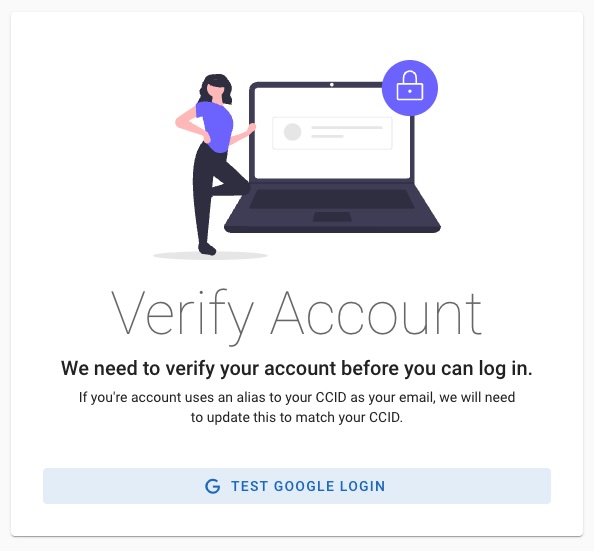
Email Verification Process
Email Verification Page
Visit https://your-colabmacs-site/login/verify to access the Email Verification page.
To update your email in Colabmacs to the correct Google email address, visit the Email Verification page at {your-colabmacs-site}/login/verify. You can use this page to test your account in Colabmacs. If no email is found, enter your legacy LMACS email address and submit the form. An email will be sent to that address with a verification link. Click the link to verify your email address. Once verified, you can continue to login as normal using Google authentication.
Data Import
Import Scope
During the import process, only data within the defined import window will be imported. The import window is customizable, on a per model basis. Please contact Colabmacs support for assistance in configuring the import process.
The import process maps models according to the table below. Additional meta information about Models that does not map into the new application will be imported as settings for review.
| Legacy Model | Colabmacs Model |
|---|---|
| Area | Process Area |
| Booking | Event |
| Equipment | Resource |
| EquipmentGroups | Process |
| Facility User | User |
| Group | Team |
| Interlock | Interlock |
| Level | Role |
| Location | Location |
| Material | Material |
| Option | Option |
| Projects | Project |
| Project Type | Project Type, Rate Group |
| Project User | Project User |
| Rate | Rate |
| Request | Request |
| Request Item | Request |
| Request Type | Request Type |
| Usage | Resource Usage |
Areas
Areas are converted to Process Areas. The Process Areas are then associated with the imported Resources.
Bookings
Only future booking are generally imported. Any bookings associated with inactive Users, or Projects are ignored. The new Event is attributed to the User, Resource and Project.
Equipment
Equipment marked as Inactive will not be imported. Once imported, the new Resource will be assigned to the appropriate Process Area and Location. If there was an associated Interlock, it will be configured as well. Any Rates associated with the Equipment will be imported. Only Rates for active Project Types, and non-zero rates will be imported. See Rates for more details.
Equipment Groups
Equipment Groups are converted to Processes. The new process will take the name of the Primary Equipment (PEQID) of the group. Due to ambiguity in how Equipment Groups are defined in legacy systems, the import process will attach both Resources to the new Process. Any Training that was created during the import of the underlying Resources will be attached to the new process. Any Interlocks associated with the underlying Resources will also be attached to the new Process.
Equipment Training
During the import process, two types of Training are automatically created and configured for each new Resource - Basic Training and Advanced Training. Each configuration is set to be required, valid for 365 days, and not to renew on use. A Basic Training Record is created for each active Tool User. The system will create a Training Session for each User and attempt to assign the appropriate Trainer. If the Trainer was not imported due to being inactive, the User will be both the Trainee, and the Trainer. The system will also create an Advanced Training record for each user based on the user Level on the Equipment. These default Trainings can be used as a starting point to implement specific Access Rules. By default, no Access Rules are generated.
Facility Users
Users who have not been active since the start of the import window will not be imported. During the import process, a Safety Training will be automatically created and configured for each Location. Legacy Users who have a safety training flag set will have a valid Training Record created for the new Safety Training in each of the Locations that they have access to Equipment in. The system will attempt to determine the appropriate Trainer using the oldest Tool User record in the location with a valid Trainer. If none can be found, the User will be used as the Trainer.
Groups
Inactive Groups will not be imported. The Group owner will be assigned if possible. If a Group owner can not be determined, this will be left blank, and the Team will be set to Inactive. Any Users listed as Managers in the legacy system will be added as Team members. A default Address will also be created.
Interlocks
Interlocks are imported and assigned the Model. Interlocks are no longer associated with Locations.
Levels
Levels are imported as Roles. Because Levels in legacy applications had ambiguous functionality, it is highly recommended that these roles be reviewed, and possibly removed. Colabmacs uses default permissions to authorize User actions.
Locations
During the import process, a default Safety Training configuration will be created for each Location. Each configuration is set to be required, valid for 365 days, and not to renew on use. A default set of Business Hours will also be created. The default hours are Monday - Friday, 8:00 am to 6:00 pm. These hours are attached to each Location. A default Address will also be created for each Location.
Materials
Material Usage is not imported. Additional data about Materials is stored in the Models setting fields. Any Rates associated with the Material will be imported. Only Rates for active Project Types, and non-zero rates will be imported. See Rates for more details.
Options
All legacy Options are imported; however, many of them can safely be removed as they will not be used by the new application. See Options to determine what is required.
Projects
Inactive Projects will not be imported, nor will projects with inactive Project Types. In the new system, a Project only belongs to a single Group. Projects will be added to the listed Primary Group from the legacy system. Active Project Users will be added.
Project Types
Inactive Project Types will not be imported. During the import process, a Rate Group will be created and attached to each Project Type.
Project Users
Inactive Project Users will not be imported. Each Project User will be attached to corresponding newly imported Project.
Rates
During the import process, a new Rate Group is created for each Project Type. Only non-zero Rates for active Project are imported. These are reduced to unique combinations of Rate/Unit and Rate Group - as an example, there will only be a single $100/Hour Academic Rate. The Rates are then attached to Materials and Resources as required.
Requests
Only Requests in Active states will be imported. The determination of an Active state will be made prior to the import process. Those assigned to a Request will be added as Participants. Bookings, Resources and Comments will be attached. Private Comments are not imported. Request Items are imported as Child Requests.
Request Items
Only Requests in Active states will be imported. The determination of an Active state will be made prior to the import process. Request Items are converted to standard Requests and added as a Child Request to the associated top level Request. Those assigned to a Request Item will be added as Participants. Bookings, Resources and Comments will be attached. Private Comments are not imported.
Request Types
Inactive Request Types will not be imported. Users who are listed in the Assign To field of the Legacy type will be added to the auto assignment of the imported Request Type. No Roles are automatically added to the auto-assignment configuration of the type.
Usage
NOTE
No Charges are generated during the usage import process
Only Equipment Usage is imported. Usage belonging to inactive Projects or Users will not be imported. Usage is converted to a Resource Usage Record using the Actual quantity recorded. This may result is some very large numbers as there is no accounting for adjustments made for forgetting to log out. The large values may skew some analytics.