

Requests
Overview
Requests are a core coordination and workflow mechanism in Colabmacs. They allow facilities to track work, training, approvals, and service tasks in a structured, auditable way.
Requests function like a facility-aware ticketing system that connects people, resources, training, samples, and processes — without directly granting access or generating charges.

How Requests Fit into Colabmacs
Projects
- Long-lived organizational containers
- Used for billing, reporting, and ownership
- Requests may be linked to a project when billing or tracking is relevant
Requests
- Workflow and coordination containers
- Track tasks, approvals, training, and process steps
- Not billable
- Do not grant access
Usage Records
- Records of actual resource or process usage
- Used for billing and analytics
- Generally not directly linked to requests
Request Lifecycle & States
Requests follow a fixed state machine and always begin in Submitted.
States
- Submitted
- Pending Approval
- Approved
- In Progress
- On Hold
- Declined
- Complete
Request state reflects progress only and does not control access, training validity, or billing.
Frontend vs Admin Responsibilities
Users (Frontend)
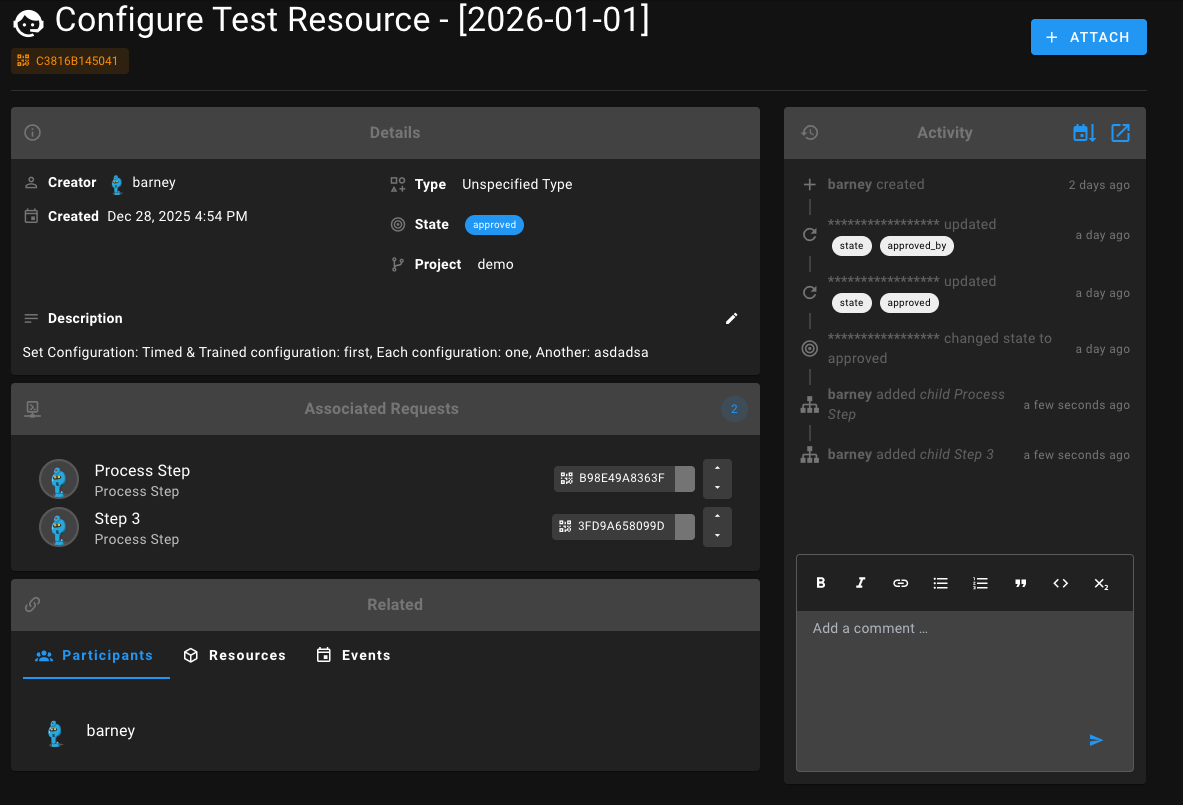
- Create requests
- Provide descriptions and attachments
- View status updates
- Communicate via threaded comments
- Mention users using
@usernameto trigger notifications
Admins & Staff
- Manage request state
- Assign participants
- Attach resources, samples, and training sessions
- Create child requests
- Coordinate work via comments
Viewing Requests (Admin)
Navigate to Resources → Requests to view all requests, their states, and activity history.
Creating Requests (Admin)
Admins may create requests directly for internal workflows or follow-up tasks.
Key fields include:
- Name
- Priority
- Request Type
- Project (optional)
- Description and attachments
Request Types (Critical Configuration)
Request Types define how requests behave when they are submitted. They are one of the most important administrative configurations in Colabmacs.
Visibility
Request types that have the visibility of Public will be visible for users to select when creating new requests from the frontend.
What Request Types Control
A Request Type may define:
- Whether approval is required
- Whether the request is billable (future use)
- How participants are automatically assigned
Auto‑Assignment Options
When a request is submitted, participants may be auto‑assigned based on:
- Specific Users
- System Roles
- Resource Team Roles
Auto-Assignment
Assignment means the user becomes a participant in the request.
Resource‑Aware Assignment
If assignment is based on resource team roles, the request must include a resource.
Example:
Training Request
→ Assigned to users with role "Trainer"
→ On the selected resourceRequests & Training
- Training requests are standard requests with a specific type
- Training sessions may be attached to requests
- Request state and training record state are independent
- Completing a request does not grant access
Only valid Training Records control access.
Requests, Processes & Child Requests
Requests support unlimited nesting.
Child requests are commonly used as process steps.
Requests & Samples
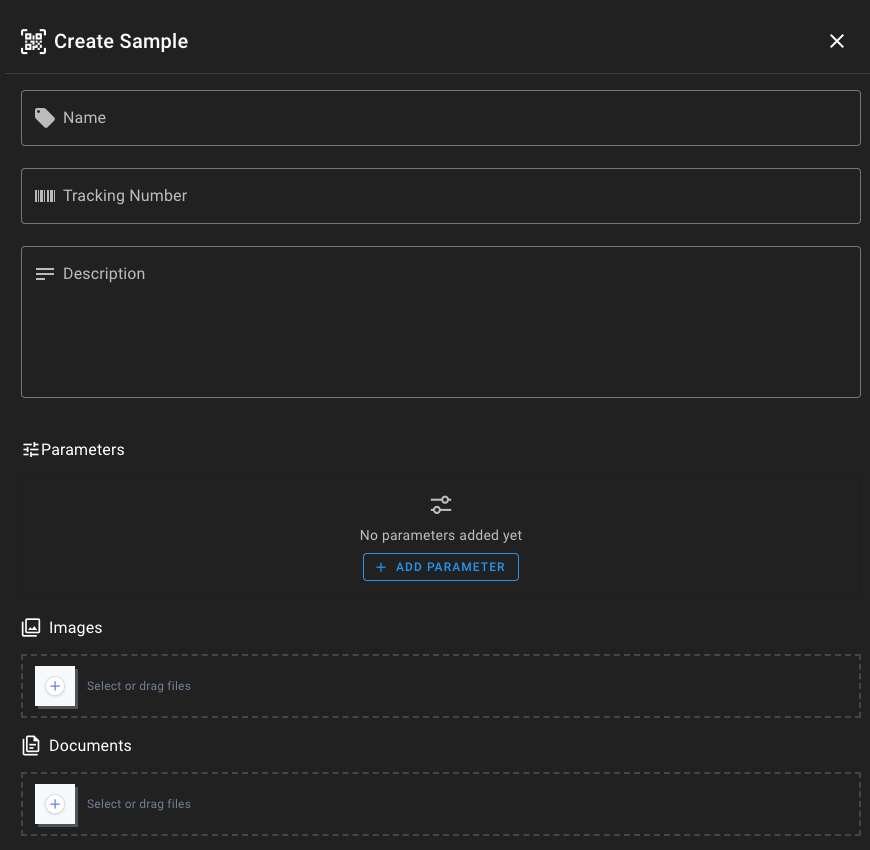
Samples are physical items associated with requests. They may include parameters, attachments, and QR codes for tracking.
File Uploads & Attachments
File Retention
Colabmacs should not be used as a long-term file storage solution. Facility administrators may set policies to regularly clean up old attachments. If you need to keep files for an extended period, be sure to download and store them elsewhere.
Colabmacs may purge attachments associated with requests that are deleted or closed after a certain time (typically ~ 1yr).
- Requests support file attachments
- Common uses include supporting documents, images, or data files
- Attachments can be added to either the
imageordocumentcollections.- The
imagecollection is optimized for image files and generates thumbnails. - The
documentcollection is for general files.
- The
- Maximum file size is 100 MB
Allowed File Types
Note that the application has a finite list of allowed file types. If you attempt to upload a disallowed file type, you will receive a 422 error message. One method to get around this is to .zip the file before uploading.
See: Allowed File Types for a complete list of allowed types.
Billing & Charges
- Requests are not directly billable
- Billing is generated from usage records and materials
- Projects link requests to billing context
Key Takeaways
- Requests coordinate work — they do not grant access
- Request Types drive automation and assignment
- State tracks progress, not permission
- Training access depends on Training Records
- Billing occurs through usage, not requests