

Requests
Requests are how you communicate with the facility through Colabmacs.
Whenever you need something that goes beyond a simple booking — help from staff, configuration changes, training, approvals, or documentation — you’ll use a Request.
Think of requests as a structured, trackable conversation between you and the facility, with clear ownership, status, and history.
What Is a Request?
A Request represents a task, question, or action that requires review or involvement from facility staff.
Common examples include:
- Requesting training or retraining
- Asking for resource configuration changes
- Submitting samples or process steps
- Reporting an issue with equipment
- Requesting assistance or approval
- Coordinating multi-step workflows
Requests ensure:
- Clear communication with facility staff
- Consistent handling of user needs
- Full visibility into progress and outcomes
Where Requests Appear
You’ll encounter Requests in several places:
- The Dashboard (open and active requests)
- The Requests section in the main navigation
- Linked directly from Resources, Trainings, or Bookings
Each request lives in one place but may be referenced throughout the system.
Creating a Request
To create a new request:
- Click New Request from the dashboard or requests page
- Select a request type (request types are generally shared across the system)
- Fill in the required details
- Add parameters or attachments if needed
- Submit the request
Once submitted, the request enters a managed workflow and is visible to the appropriate facility staff.
Request Details
Opening a request shows all relevant information in one place.
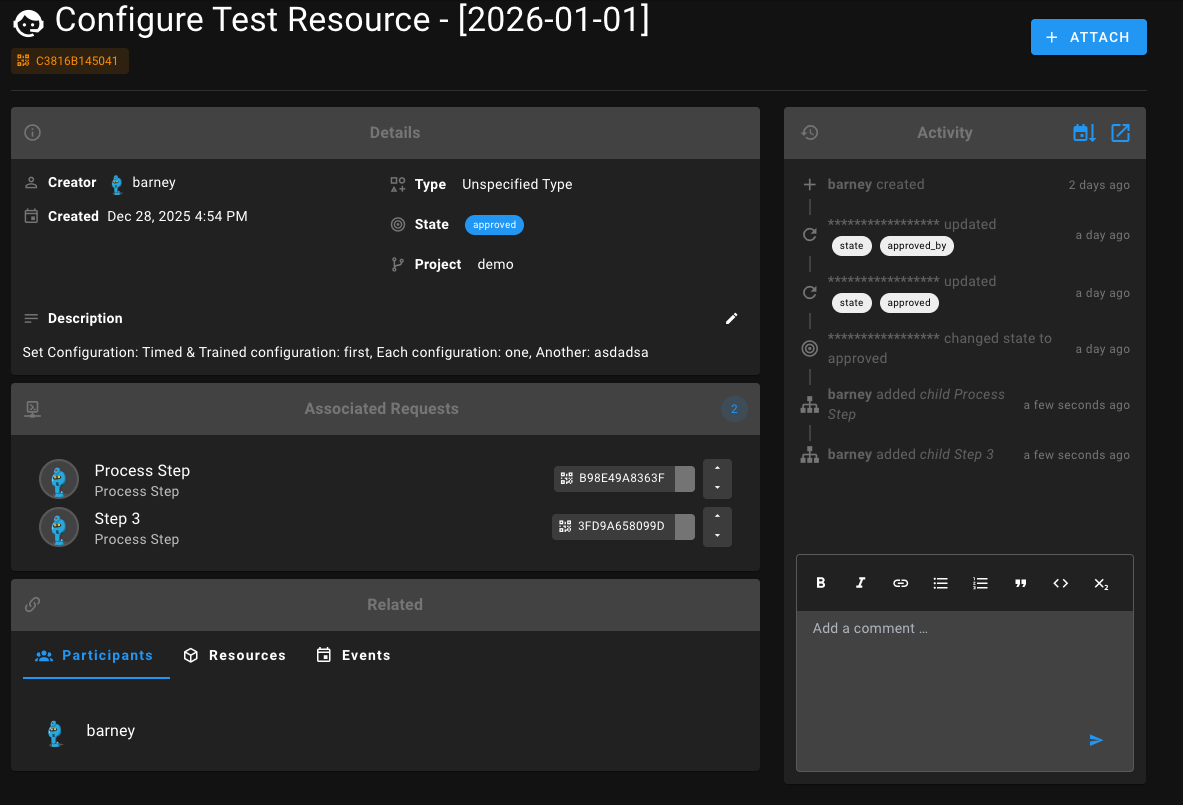
Request Header
At the top of the request you’ll see:
- Request name
- Request ID (for reference and communication)
- Current state (submitted, approved, etc.)
- Associated project
- Creator and creation date
This gives you immediate context for where the request stands.
Editing a Request
Depending on the request type and current state, you may be able to:
- Edit the description
- Update parameters
- Add attachments
- Provide additional clarifying information
If an element is editable, it will be clearly indicated in the interface.
Even after submission, requests are designed to evolve as more information becomes available.
Attachments
You can attach files to requests, such as:
- Images
- Documents
- Data files
- Reference materials
- Samples
Attachments are stored with the request and visible to all participants.
Allowed File Types
Note that the application has a finite list of allowed file types. If you attempt to upload a disallowed file type, you will receive a 422 error message. One method to get around this is to .zip the file before uploading.
File Retention
Colabmacs should not be used as a long-term file storage solution. Facility administrators may set policies to regularly clean up old attachments. If you need to keep files for an extended period, be sure to download and store them elsewhere.
Colabmacs may purge attachments associated with requests that are deleted or closed after a certain time (typically ~ 1yr).
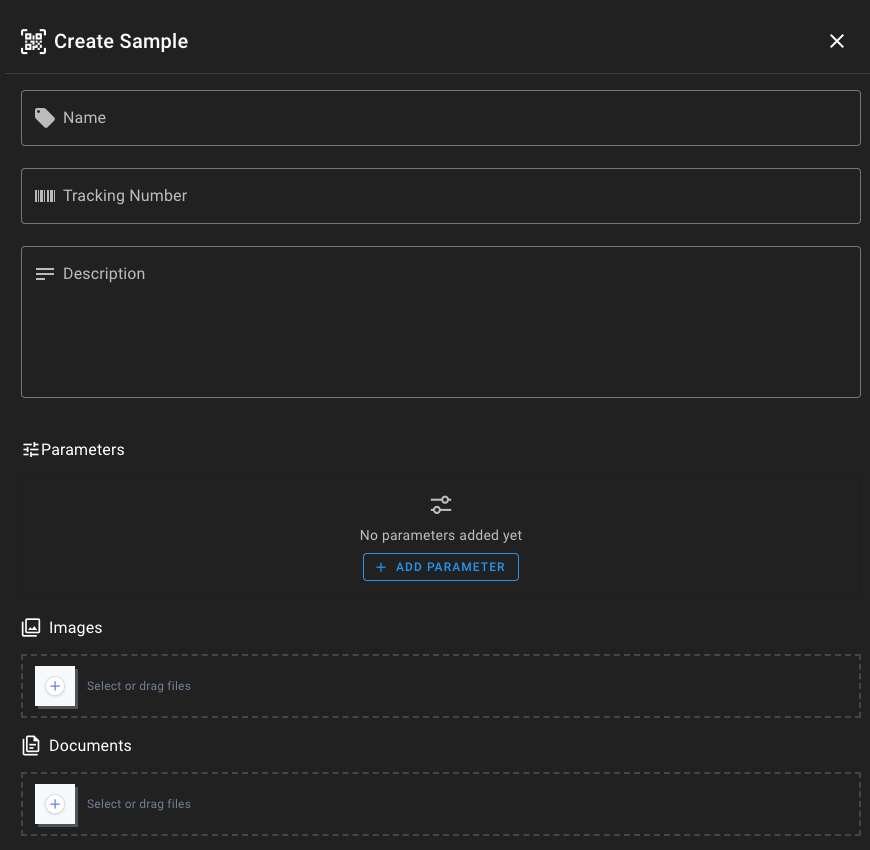
Samples
Samples are a special type of attachment that can be tracked through the request.
Participants
Each request includes Participants, which may include:
- You (the requester)
- Facility staff
- Trainers or technicians
- Other collaborators
Participants can view the request, contribute information, and follow its progress.
Activity & Threaded Comments
All communication happens through threaded comments within the request.
The Activity panel records:
- Comments and replies
- State changes
- Attachments added
- Linked or related items
This keeps all discussion contextual, searchable, and permanently associated with the request — no separate emails or messages required. If you need to specifically notify someone, you can @mention them in a comment.
@mention Notifications
In the case where you @mention someone, they will receive a notification based on their personal notification settings. The system returns the first 15 users that match the @mention query, if you are in a large organization where there are a lot of users with similar names, you can use the _ character to continue the search through to their last name.
If you are still having issues locating the user you wish to @mention, you can also try using the first part of their email address (@emailhandle) to find them.
Request States (High Level)
Requests move through states as they are reviewed and acted upon.
Common states include:
- Submitted – Awaiting review
- Approved – Accepted and ready to proceed
- In Progress – Work is underway
- On Hold – Waiting for more information or action
- Completed – Work finished
- Rejected – Cannot be fulfilled (with explanation)
The current state is always visible so you know exactly what’s happening.
Requests and Other System Concepts
Requests often connect to other parts of Colabmacs:
- Resources – Configuration, access, or issue reporting
- Training – Training or retraining requests
- Bookings – Support related to scheduled usage
- Processes – Sample handling or multi-step workflows
Related items appear directly within the request for easy navigation.
Why Requests Matter
Requests allow the facility to:
- Enforce policies consistently
- Coordinate staff effort
- Maintain a complete audit trail
For you as a user, they provide:
- Clear expectations
- Transparent status updates
- A single place to manage facility interactions
Requests are the primary way you work with the facility — structured, visible, and reliable.