

Overview
Custom Imports provide a safe, repeatable way to create or update large volumes of data using CSV or XLSX files. This feature is designed for administrators who need to migrate data, perform bulk updates, or bootstrap a new environment without manual data entry.
Supported models:
| Model Type | Formats |
|---|---|
| Users | CSV, XLSX |
| Events | CSV, XLSX |
| Infrastructure | CSV, XLSX |
| Projects | CSV, XLSX |
| Resources | CSV, XLSX |
| Trainings | CSV, XLSX |
| Training Records | CSV, XLSX |
| Schedules | CSV, XLSX |
| Teams | CSV, XLSX |
Each import runs as a single, auditable operation and can be rolled back if needed.
How Imports Work
At a high level, every import follows the same workflow:
- Choose the model you want to import
- Upload a CSV or XLSX file
- Map file columns to system fields
- Process the import and review results
Starting a New Import
- Navigate to Settings → Custom Imports
- Ensure you are on the New Import tab
- Select a model from the Select Model dropdown
- Upload your CSV or XLSX file
- Click Upload & Process
Once a model is selected, the system will:
- Display required and optional fields
- Show inline help for the selected model
- Provide a downloadable template file with valid headers
Download Templates
Always start from the provided template when possible. Templates include all supported fields and correct column names for the selected model.
Column Mapping
After uploading a file, you must map each column to a system field.
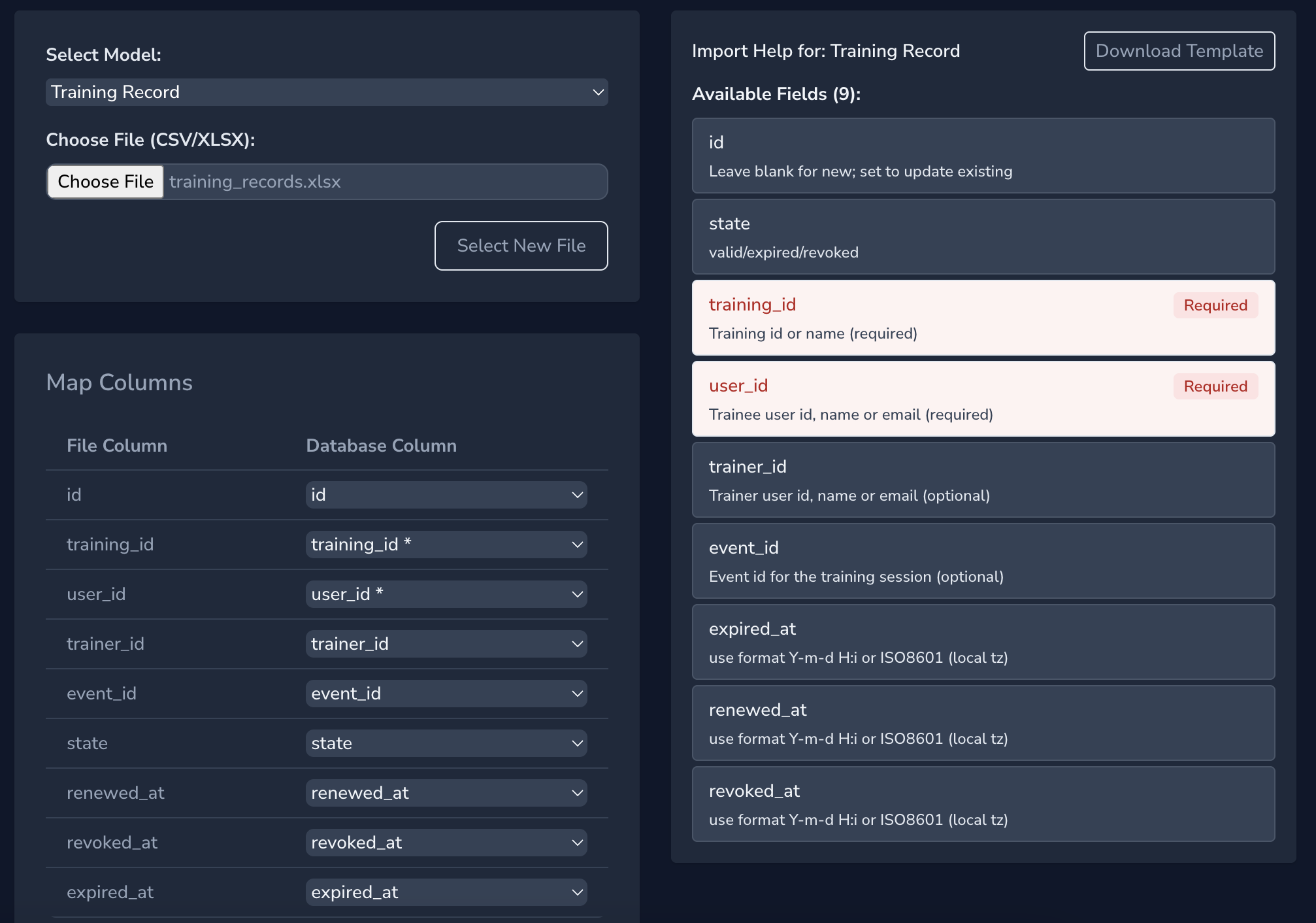
Correct mapping is critical—only mapped fields are processed.
IDs and Record Matching
- If an id column is present, the importer will update the matching record
- If no id is provided, a new record will be created
ID Alternatives
Many ID fields also accept a name (or email, where applicable). This can make files more readable, but should only be used if you are confident there are no naming collisions.
Updating Existing Records
All importable models also support exporting existing records.
- Navigate to the target model (e.g., Users, Events)
- Apply filters as needed
- Use Actions → Export (CSV/XLSX)
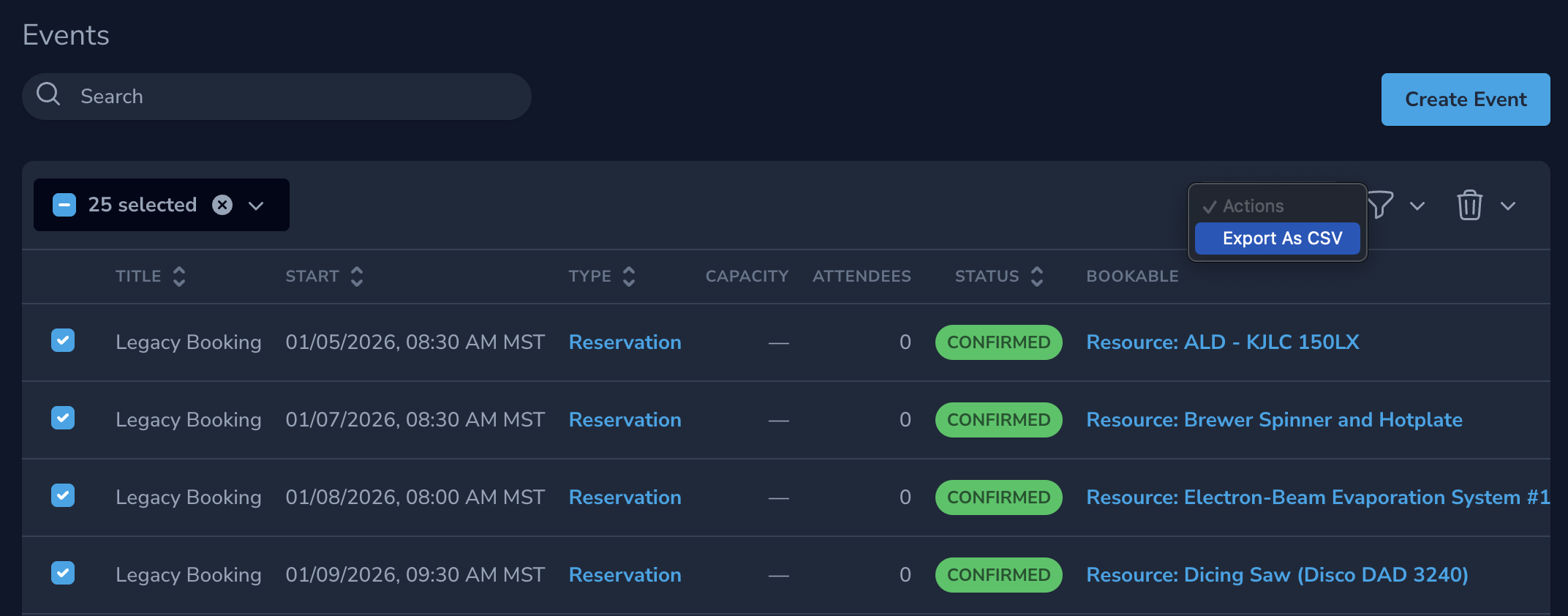
You can then modify the exported file and re-import it.
This means Custom Imports support a full round-trip update workflow:
- Export existing records
- Edit the exported file in bulk
- Re-import the file
- Review the updated records or roll back if needed
Important behavior:
- Only fields present in the import file are updated
- All other fields remain unchanged
- Including the
idfield ensures precise updates
Import Rollback
Every import is tracked and can be rolled back.
Rolling Back an Import
- Go to Settings → Custom Imports → Import History
- Locate the import entry
- Click Roll Back
Rollback reverses all records created or modified by that import.
Rollbacks Are Permanent
Once rolled back, the import cannot be re-applied automatically. Always keep backups of your original files.
Model-Specific Import Notes
Users
| Field | Description | Example |
|---|---|---|
| id | User ID | UUID |
| name | Full name | John Smith |
| Email address | [email protected] | |
| state | User state | active |
- Users can be matched by id or email
- New users receive a random password
Password Setup
New users should use Forgot Password to set their own credentials.
Events
Used for bulk scheduling or historical event imports.
| Field | Description | Example |
|---|---|---|
| id | Record ID (used for updates) | 6ba7b810-9dad-11d1-80b4-00c04fd430c8 |
| start* | Event start date/time | 2025-11-01 09:00:00 |
| end* | Event end date/time | 2025-11-01 17:00:00 |
| title* | Event title | Annual Safety Training |
| url | Event page or resource URL | https://example.com/safety |
| state | Current status (e.g., confirmed, finished) | confirmed |
| capacity | Number of participants allowed | 10 |
| description | Event details | Mandatory safety training |
| resource | name / id of associated resource | Resource A |
| event_type_id | name / id of the event type | Training |
| schedule_id | name / id of associated schedule | Resource Schedule |
| user_id | name / id / email of event owner | [email protected] |
IDs may be provided as UUIDs or resolved by name.
Infrastructure
Used for bulk creation or maintenance of infrastructure records and their related resources or locations.
| Field | Description | Example |
|---|---|---|
| id | Record ID (used for updates) | 550e8400-e29b-41d4-a716-446655440000 |
| name* | Infrastructure name | Cleanroom Access |
| description | Infrastructure summary or notes | Shared interlock and room controls |
| state | Infrastructure status | available |
| required | Whether the infrastructure is required | true |
| properties | JSON object of infrastructure properties | {"controller":"PLC-01"} |
| resources | Related resources by id or name, pipe-separated | SEM 1 | SEM 2 |
| locations | Related locations by id or name, pipe-separated | MachineLab | Cleanroom |
- Infrastructure can be matched by id or name
- Supported states are
availableandunavailable requiredaccepts common boolean values such astrue,false,yes,no,1, and0resourcesandlocationsaccept pipe-separated values and can use either UUIDs or namespropertiesmust be valid JSON
Infrastructure Relationships
If resources or locations are included in the import, the importer will sync those relationships to match the file contents.
Projects
Used for bulk creation or maintenance of project records.
| Field | Description | Example |
|---|---|---|
| id | Record ID (used for updates) | 550e8400-e29b-41d4-a716-446655440000 |
| name* | Project name | Industry Partner 2026 |
| description | Project summary or notes | Shared access project for Q2 work |
| state | Project status | active |
| visibility | Project visibility | private |
| team_id | Owning team by id or name | Microfab Team |
| project_type_id | Project type by id or name | External |
| rate_group_id | Rate group by id or name | Industrial |
| created_by | Creator by id, name, or email | [email protected] |
| account_code | Optional account or finance code | ACCT-2048 |
| expires | Expiry date | 2026-12-31 |
| budget | Numeric budget amount | 25000 |
- Projects can be matched by id or name
- Creating a new Project requires both a team and a project type
team_id,project_type_id, andrate_group_idaccept either UUIDs or namescreated_byaccepts a user UUID, name, or email- Supported states are
active,inactive,pending, andsuspended - Supported visibility values are
private,public, andopen
Creating New Projects
When importing a brand new Project, include at least name, team_id, and project_type_id. Other fields may be added as needed.
Resources
Used for bulk creation or maintenance of resource records and infrastructure assignments.
| Field | Description | Example |
|---|---|---|
| id | Record ID (used for updates) | 550e8400-e29b-41d4-a716-446655440000 |
| name* | Resource name | SEM 1 |
| description | Resource summary or notes | High-resolution scanning microscope |
| state | Resource status | available |
| visibility | Resource visibility | public |
| buddy_required | Whether buddy access is required | false |
| resource_type_id | Resource type by id or name | Microscope |
| location_id | Location by id or name | Cleanroom |
| business_hours_id | Business hours profile by id or name | Standard Lab Hours |
| infrastructure | Related infrastructure by id or name, pipe-separated | Cleanroom Access | Gas Monitor |
- Resources can be matched by id or name
- Creating a new Resource requires both a resource type and a location
resource_type_id,location_id, andbusiness_hours_idaccept either UUIDs or namesinfrastructureaccepts pipe-separated values and can use UUIDs or names- Supported states are
available,inUse,maintenance, andunavailable - Supported visibility values are
privateandpublic buddy_requiredaccepts common boolean values such astrue,false,yes,no,1, and0
Creating New Resources
When importing a brand new Resource, include at least name, resource_type_id, and location_id.
Resource Infrastructure Behaviour
- If the
infrastructurecolumn is omitted, existing infrastructure assignments remain unchanged - If the
infrastructurecolumn is included, the Resource's infrastructure relationships are synced to match the file - Multiple infrastructure values should be separated with the pipe (
|) character
Trainings
Trainings define what users can be certified on and what access they may receive.
| Field | Description | Example |
|---|---|---|
| id | Record ID (used for updates) | 6ba7b817-9dad-11d1-80b4-00c04fd430c8 |
| name | Training name | First Aid Certification |
| description | Summary or notes | Basic first aid and CPR |
| schedule_id | Related schedule | 550e8400-e29b-41d4-a716-446655440000 |
| locations | Related locations (trainable) | Location A | Location B |
| resources | Related resources (trainable) | Resource 1 | Resource 2 |
| processes | Related processes (trainable) | Process 1 | Process 2 |
| configurations | Related configurations (trainable) | Configuration 1 | Configuration 2 |
| state | Status of the training | open |
| required | Indicates if training is mandatory | true |
| renew_on_use | Renewal option | false |
| days_valid | Number of valid days | 365 |
Supports relationships to:
- Locations
- Resources
- Processes
- Configurations
Multiple relationships are separated using the pipe (|) character.
Training Records
Used to import historical or externally managed certifications.
| Field | Description | Example |
|---|---|---|
| id' | Record ID (used for updates) | 550e8400-e29b-41d4-a716-446655440000 |
| state | Status of the training record | valid |
| training_id | name / id of the training | First Aid Certification |
| user_id | name / id / email of the user | [email protected] |
| trainer_id | name / id / email of the trainer | [email protected] |
| event_id | name / id of the event | Annual Safety Training |
| expired_at | Expiration date/time | 2026-11-01 17:00:00 |
| renewed_at | Renewal date/time | 2025-11-01 17:00:00 |
| revoked_at | Revocation date/time |
Schedules
Schedules define availability and unavailability windows.
| Field | Description | Example |
|---|---|---|
| id | Record ID (used for updates) | 550e8400-e29b-41d4-a716-446655440000 |
| name | Schedule name | Weekly Staff Meeting |
| type | Schedule type (e.g., available, unavailable) | unavailable |
| description | Additional details |
Teams
Used for bulk creation or maintenance of team records, including contact and address information.
| Field | Description | Example |
|---|---|---|
| id | Record ID (used for updates) | 550e8400-e29b-41d4-a716-446655440000 |
| name* | Team name | Microfab Team |
| description | Team summary or notes | Internal operations team |
| state | Team status | active |
| visibility | Team visibility | private |
| owner_id | Team owner by id, name, or email | [email protected] |
| default_project_id | Default project by id or name | Industry Partner 2026 |
| contact_title | Primary contact title | Lab Manager |
| contact_name | Primary contact name | Jane Smith |
| contact_email | Primary contact email | [email protected] |
| contact_phone | Primary contact phone | 555-555-0100 |
| billing_contact_title | Billing contact title | Accounts Payable |
| billing_contact_name | Billing contact name | Finance Desk |
| billing_contact_email | Billing contact email | [email protected] |
| billing_department | Billing department | Finance |
| billing_address1 | Billing address line 1 | 123 Billing Ave |
| billing_address2 | Billing address line 2 | Suite 400 |
| billing_city | Billing city | Edmonton |
| billing_province | Billing province or state | Alberta |
| billing_postal_code | Billing postal code | T5J 0N3 |
| billing_country | Billing country | Canada |
| billing_phone | Billing phone | 555-555-0110 |
| billing_fax | Billing fax | 555-555-0111 |
| shipping_contact_title | Shipping contact title | Receiving |
| shipping_contact_name | Shipping contact name | Receiving Desk |
| shipping_contact_email | Shipping contact email | [email protected] |
| shipping_department | Shipping department | Operations |
| shipping_address1 | Shipping address line 1 | 456 Shipping Rd |
| shipping_address2 | Shipping address line 2 | Bay 2 |
| shipping_city | Shipping city | Edmonton |
| shipping_province | Shipping province or state | Alberta |
| shipping_postal_code | Shipping postal code | T5J 0N4 |
| shipping_country | Shipping country | Canada |
| shipping_phone | Shipping phone | 555-555-0120 |
| shipping_fax | Shipping fax | 555-555-0121 |
- Teams can be matched by id or name
owner_idaccepts a user UUID, name, or emaildefault_project_idaccepts a project UUID or name- Supported states are
active,inactive, andpending - Supported visibility values are
private,public, andopen - New Teams are created as standard teams, not personal teams
- When a new Team is created, the selected owner is also attached as a team member using the default role
Team Address Behaviour
- If no billing or shipping address columns are included, existing team addresses remain unchanged
- Billing and shipping details can be updated independently
- If all shipping address columns are left blank, the Team will reuse the billing address for shipping
Team Address Imports
The Team importer can manage both top-level contact details and the Team's billing and shipping address records in the same import file.
Export Templates & Reuse
Exported files can serve two purposes:
- As backups before making changes
- As editable templates for re-import
- As the starting point for round-trip bulk updates
Example Workflow
Updating training descriptions in bulk:
- Filter trainings by state
- Export to CSV
- Update the description column
- Re-import the file
Best Practices
Before Importing
- Export a backup of existing data
- Validate IDs, emails, and date formats
- Test with a small subset of records first
After Importing
- Review Import History for status and counts
- Spot-check updated records
- Roll back immediately if issues are detected
Common Use Cases
- Onboarding large groups of users
- Migrating from legacy systems
- Rolling out quarterly training programs
- Bulk updates after policy changes
- Emergency rollback of test data
Need Help?
If an import does not behave as expected:
- Review Import History for errors
- Export a small sample for validation
- Confirm field names match the template
- Contact your system administrator or support team