

Resources
Resources are the center of Colabmacs. A Resource is anything your facility wants to schedule, control access to, track usage for, and (optionally) bill for—equipment, rooms, tools, and staff-supported services.
From the admin side, each Resource brings together the configuration that makes the user experience work: schedules, training, access rules, rates, and more.
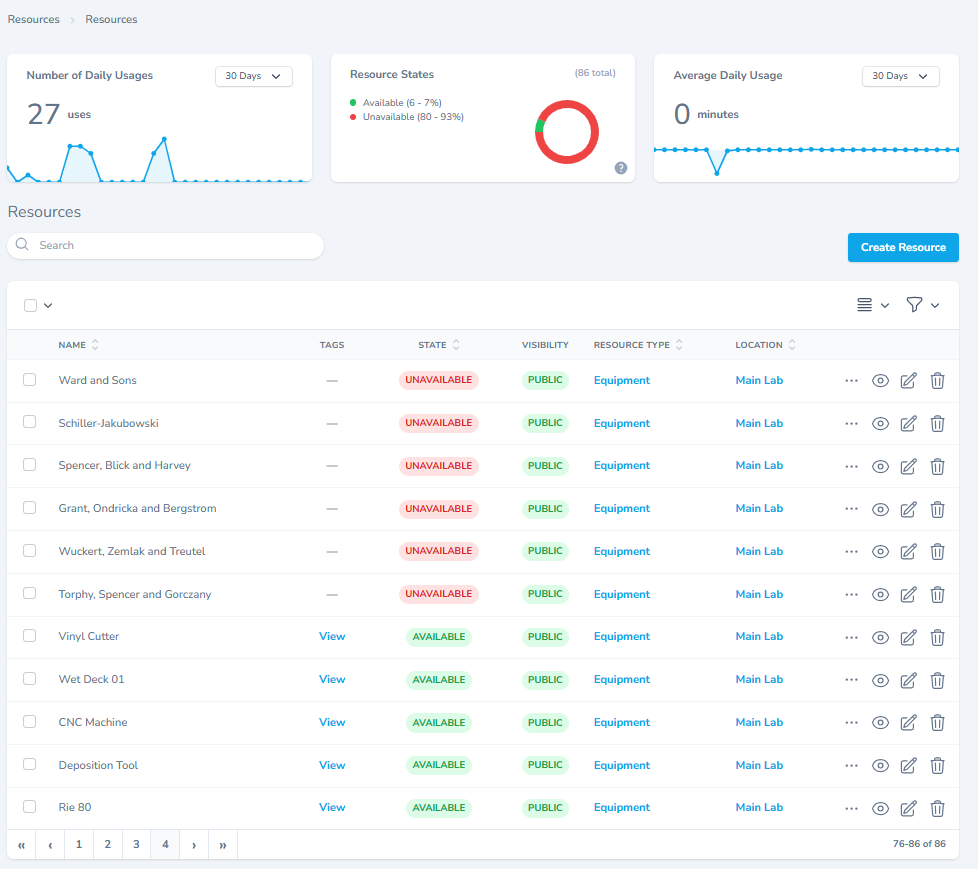
What a Resource Can Include
A Resource can be simple (just a name + schedule) or highly controlled (training + access rules + interlock + parameters + billing). The most common building blocks are:
- Training: requirements that determine whether a user is eligible to book or use the Resource. See: Training Management
- Access Rules: policies that control booking, activation, and cancellation. See: Access Rules
- Schedules: business hours, maintenance windows, and closures that affect availability. See: Schedules
- Configurations: selectable options that represent how a Resource is set up (and may require notice). See: Configurations
- Processes: optional workflows/SOP-style guidance connected to the Resource. See: Processes
- Parameters: information you want captured before/after usage (e.g., pressure, temperature, notes). See: (TODO: link to Parameters page)
- Infrastructure: dependencies like power, vacuum, cooling water—often shared through a Location. See: Infrastructure
- Interlocks: physical access control / safety gating for the Resource. See: Interlocks
- Rates: pricing rules that allow usage to generate charges (when billing is enabled). See: Rates & Billing
- Team Members: the people responsible for supporting the Resource (owners, technicians, trainers). See: Team Management
- Media & Links: manuals, photos, safety docs, vendor links, and internal SOPs that help users self-serve.
Keep it user-friendly
A Resource page doubles as “documentation in the app.” Adding a couple of photos, a short description, and the right links can dramatically reduce support requests.
Creating a Resource
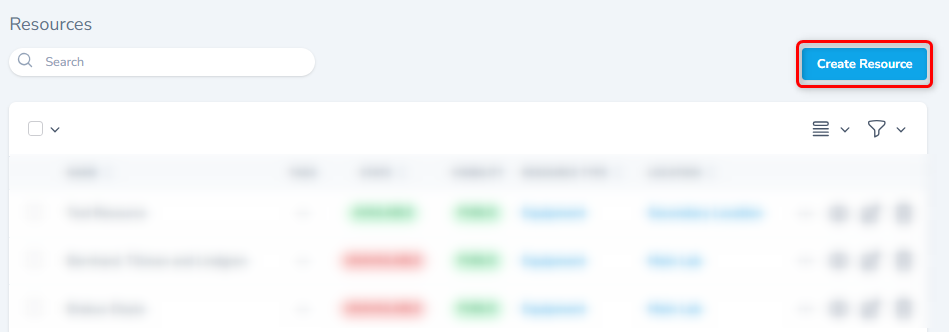
From the Resources listing, click Create Resource.
Fill in the core fields:
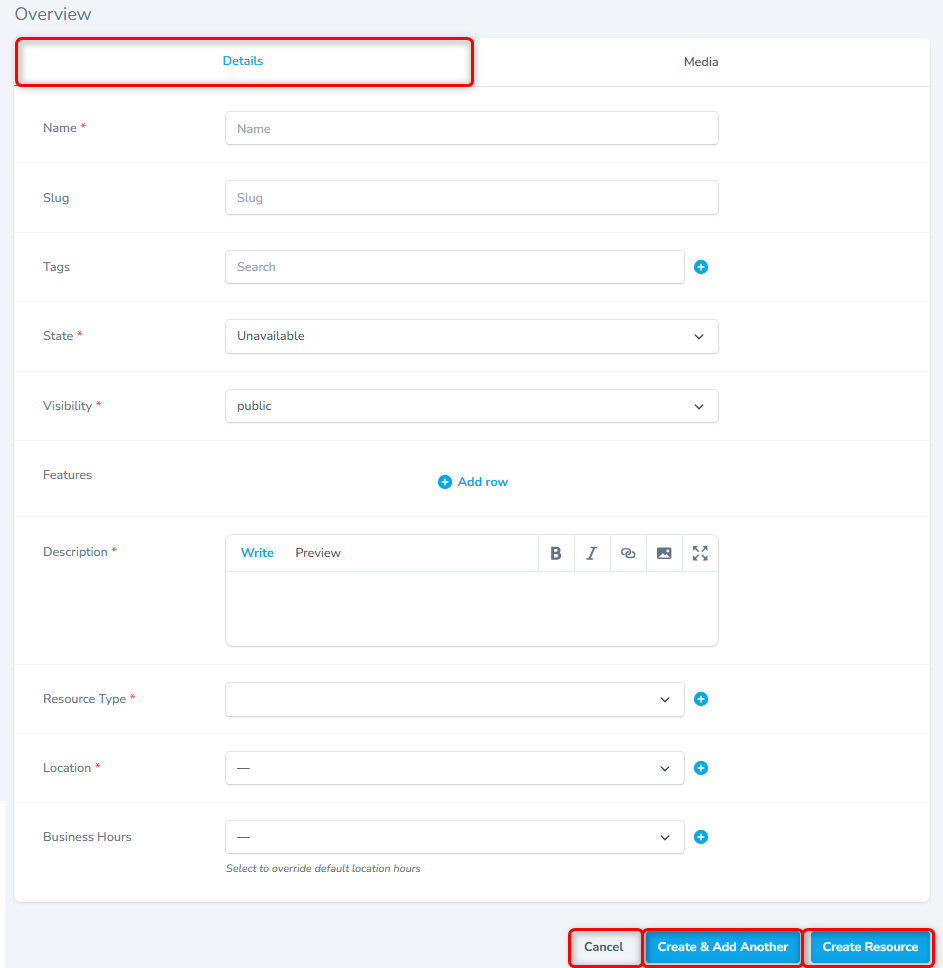
- Name: clear, searchable, user-friendly.
- State: how the Resource appears operationally (e.g., Available, In Use, Maintenance, Unavailable).
- Visibility: whether the Resource is discoverable to users (Public/Private).
- Type: categorization used for filtering and reporting.
- Location: where the Resource lives (and which default hours/closures it inherits).
Speed up bulk setup
When adding a lot of Resources at once, use Create & Add Another to stay in flow.
Media and Links
Media
Use the Media tab to attach reference material like photos, PDFs, and operating guides.
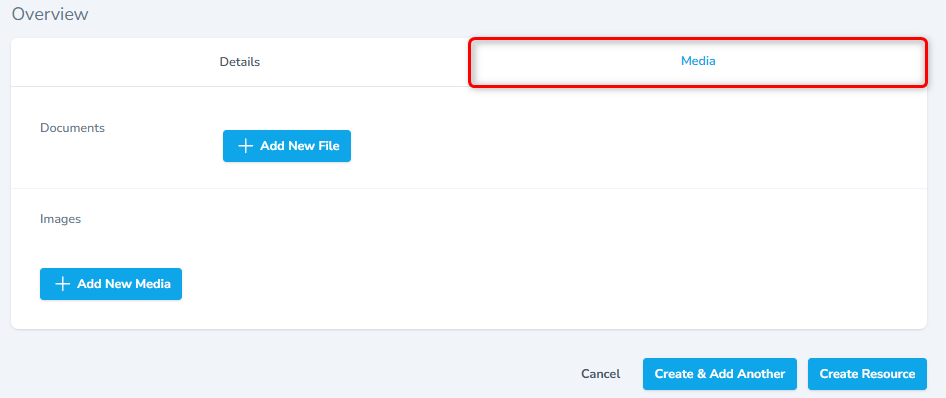
- Add New File: manuals, SOPs, safety sheets, templates.
- Add New Media: photos, diagrams, quick-reference images.
Cover Image
The system will use the first image uploaded as the cover image for the Resource page.
Links
Links are great for keeping the Resource page actionable. Common examples:
- Vendor datasheet / manual
- Safety requirements
- Internal SOP or wiki page
- External booking rules / policy pages
Suggested pattern
Add at least one “How to use this resource” link and one “Safety / SOP” link for every high-demand Resource.
Schedules
Schedules define when the Resource is bookable and usable. They’re commonly used for:
- Regular business hours
- Planned maintenance windows
- Holiday closures
- Limited-access periods (e.g., evenings, weekends)
Schedules can be applied directly to a Resource and/or inherited through its Location.
Availability is always enforced
If a time window is blocked by a schedule, users won’t be able to book it—even if they have training and permissions.
Training
Training records determine whether a user is eligible to book or use a Resource.
- Training content is delivered outside Colabmacs.
- Colabmacs stores training records and uses them to gate access.
Typical training patterns:
- Resource-specific training: required only for one Resource.
- Location-wide training: required for all Resources in a Location.
- Process training: required for a workflow or service.
Detailed Training Guides
Visit the Training Management page for in-depth guidance on setting up and managing training requirements.
Access Rules
Access Rules define the “policy layer” for a Resource—who can book/use it, when, and under which conditions.
Colabmacs groups rules by when they apply:
- Booking rules: evaluated when a user tries to create a booking.
- Activation rules: evaluated when a user tries to start a session / activate usage.
- Cancellation rules: evaluated when a user tries to cancel a booking.
Detailed Access Rules
Visit the Access Rules page for in-depth guidance on setting up and managing access policies.
Configurations
Configurations represent how the Resource is set up. They are typically selected during booking or before starting a session.
Examples:
- “Spool Type” for an embroidery machine
- “Material” or “Gas” option for a tool/process
- “Room Layout” for a space
Configurations can include:
- A list of allowed key/value options
- Optional notice periods (e.g., requires 24 hours notice for staff changeover)
- A “current configuration” value, so users and staff know the active setup
Pair configurations with rules
If certain configurations require advance notice, staff approval, or specific training, enforce that using Access Rules.
Processes
Processes describe how the Resource should be used—a workflow, SOP, or service pathway.
From a user perspective, a Process might appear as:
- A checklist or set of steps
- A staff-supported service option
- A “type of use” that changes what is captured or billed
Detailed Process Guides
Visit the Processes page for in-depth guidance on setting up and managing processes.
Process Areas
Overview
Process Areas are simple classification labels used to group resources by type of work or discipline.
They are:
- Organizational only
- Not enforceable
- Not billable
- Not tied to training or access rules
Process Areas exist to improve discoverability, not control.
What Process Areas Are Used For
- Grouping resources in the UI
- Helping users browse by discipline
- Improving navigation and filtering
Examples:
- Electronics
- Woodworking
- Textiles
- Wet Processing
- Machining
- Laser Cutting
What Process Areas Do Not Do
Process Areas do not:
- Control access
- Require training
- Affect billing
- Generate usage records
- Enforce rules
All enforcement belongs to Processes and Resources.
Best Practices
Tips
Keep Process Areas broad and stable. Avoid using them to represent procedures or safety requirements — that’s what Processes are for.
Relationship to Resources
- Each resource may belong to multiple Process Areas
- Resources within the same area may support very different processes
Parameters
Parameters are data points you want to capture and attach to usage—either before or after a session.
Common examples:
- “Material thickness”
- “Operating temperature”
- “Job number / ticket reference”
- “Outcome notes”
Parameters can be configured as:
- Required before: user must provide values before activation/start.
- Required after: user must provide values to finish/close out.
| Requirement | Behavior |
|---|---|
| Before | Prompt user before starting usage |
| After | Prompt user when completing usage |
Why parameters matter
Parameters make usage records more valuable for reporting, troubleshooting, and cost justification—especially when paired with billing.
Infrastructure
Infrastructure represents dependencies required for a Resource to operate safely and reliably (power, cooling water, house vacuum, gas, network connectivity, etc.).
Why users care:
- Infrastructure outages can block bookings, prevent sessions from starting, or cancel active bookings (depending on your rules and policies).
- Infrastructure can be shared at the Location level—so one outage can affect multiple Resources.
Use infrastructure intentionally
Only model dependencies you actually want to enforce. If you add “Network” as required for everything, you may unintentionally block bookings during minor outages.
New in This Release
Infrastructure now supports nested dependencies, multiple dependants, and required/optional dependency relationships on each connection edge. Infrastructure state management also includes an option to update associated Resource state.
Nested Dependencies
Infrastructure supports multiple dependencies and multiple dependants.
This allows you to model dependency graphs such as:
- A Resource depending on compressed air, cooling water, and controller infrastructure
- Shared infrastructure depending on upstream utilities
- One dependency being shared across many Resources or other infrastructure records
This allows you to align the Infrastructure in Colabmacs with the real world depandencies of your facility.
Required vs Optional Relationships
The required flag belongs to the relationship edge, not to the infrastructure record itself.
That means the same infrastructure can be:
- Required in one dependency chain
- Optional in another
For example, a shared vacuum line may be required for one tool but optional for another. Colabmacs evaluates that specific relationship when determining dependency impact.
State Management and Cascading
Infrastructure state changes are managed through an admin action.
When infrastructure is transitioned:
- The selected infrastructure state is updated
- Dependant infrastructure can also be transitioned
- Required dependency relationships are treated as blocking when infrastructure becomes unavailable
This makes it easier to represent shared outages and recoveries accurately across a dependency chain.
Updating Associated Resources
The state action includes an option to also update the state of associated Resources.
Use this when you want Resource status to stay aligned with infrastructure availability. If you leave that option off, the infrastructure graph is still updated, but Resource state can be managed separately.
Example
If a chilled water loop goes down, you can mark the infrastructure Unavailable and also update associated Resources so users immediately see that affected tools are unavailable. When the loop is restored, you can transition the infrastructure back to Available and bring the associated Resources back up in the same action.
Interlocks
Interlocks connect the software policy to the physical world. They can be used to:
- Control power/enable signals
- Gate access through NFC/QR/RFID workflows
- Prevent activation if rules aren’t satisfied
Interlocks are often used together with Activation Rules to ensure a Resource can only be started when a user is eligible.
Colabmacs supports the following interlocks out of the box:
| Manufacturer | Supported Models |
|---|---|
| ControlByWeb | WebRelay, WebRelay-Quad, WebRelay10, WebRelay10+ |
Detailed Interlock Guides
Visit the Interlocks page for in-depth guidance on setting up and managing interlocks.
Rates and Charges
Rates allow usage to turn into charges (when billing is enabled). The typical flow is:
- A user makes a booking (reservation).
- The user starts a usage session (activation).
- The session creates a usage record.
- If the Resource has a matching rate for the project’s rate group, the system can generate a charge.
No rate = no charge
If there is no valid rate configured for the Resource in the project’s rate group, the usage record will still exist—but a charge won’t be generated.
Visit the Rates & Billing page for in-depth guidance on setting up and managing rates.
Team Members
Resource Team Members are the people responsible for supporting the Resource—maintenance staff, trainers, technicians, owners, and specialists.
Why this matters:
- Users know who to contact when something goes wrong.
- Requests and workflows can route to the right people.
- Facilities can build consistency around accountability.
When using roles for resource support staff, make sure the role is configured to apply to Resource Team Members. This keeps resource-support roles separate from team-member and project-member roles and avoids assignment ambiguity.
Lenses and Filters
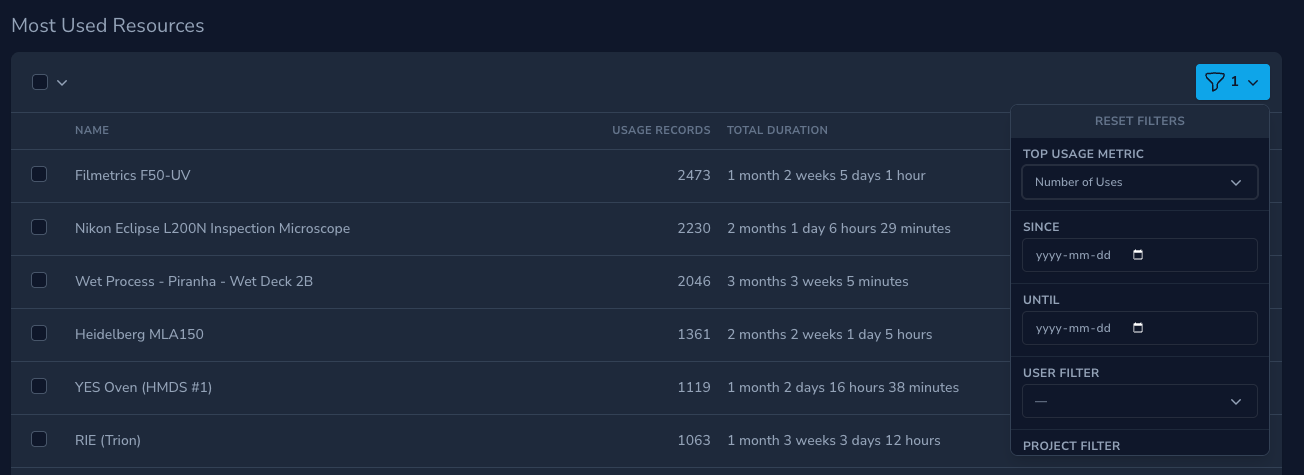
The Resources listing supports lenses and filters to view slices of key data in different ways. You can use lenses such as Most Used Resources to monitor your facility's top used resources. The lens icon in the top-right corner of the listing allows you to select different lenses.
Putting It Together
Here’s how these pieces usually work together in a “real” facility setup:
- Schedules define when the Resource can be booked.
- Training determines who is eligible.
- Access Rules enforce the policy at booking/activation/cancellation.
- Configurations and Parameters capture important context for usage.
- Interlocks enforce safe operation in the physical world.
- Rates turn usage into charges for reporting and billing.
- Media & Links reduce support load and help users self-serve.