

Managing Bookings
This guide explains how bookings work in Colabmacs, how to create and manage them, and how bookings relate to usage sessions, usage records, and charges.
It is written from a user perspective, so you know what to expect when reserving and using shared resources.
Core Concepts
Before creating a booking, it helps to understand a few key terms used throughout Colabmacs.
Booking (Reservation)
A Booking is a reservation for a resource during a specific time window.
Bookings define:
- When you are allowed to use a resource
- Which resource you are reserving
- Who the booking belongs to
Usage Session
A Usage Session is created when you start a booking.
- Starting a session indicates that you have begun using the resource
- Sessions typically start when a booking becomes Active
- Some facilities may allow sessions to start early or require staff approval
Usage Record
A Usage Record is created when a session ends.
It captures:
- Actual start and end time
- Total duration used
- Any adjustments applied by facility rules
Usage records are used for reporting and billing.
Charge
A Charge may be generated from a usage record.
Charges depend on:
- Facility billing rules
- Project or account settings
- Actual usage duration
Billing Note
Not all facilities generate charges. If billing applies, it happens automatically in the background.
Creating a Booking
Bookings are created from the Schedule section.
You can create bookings from:
- Day view
- Week view
- Month view
- List view
Calendar Invites
When you create a booking, the system will usually send you a calendar invite via email so you can add it to your personal calendar. If your session beings in the near future (~ 1hr), you may not receive this invitation. This is simply to reduce clutter in your inbox
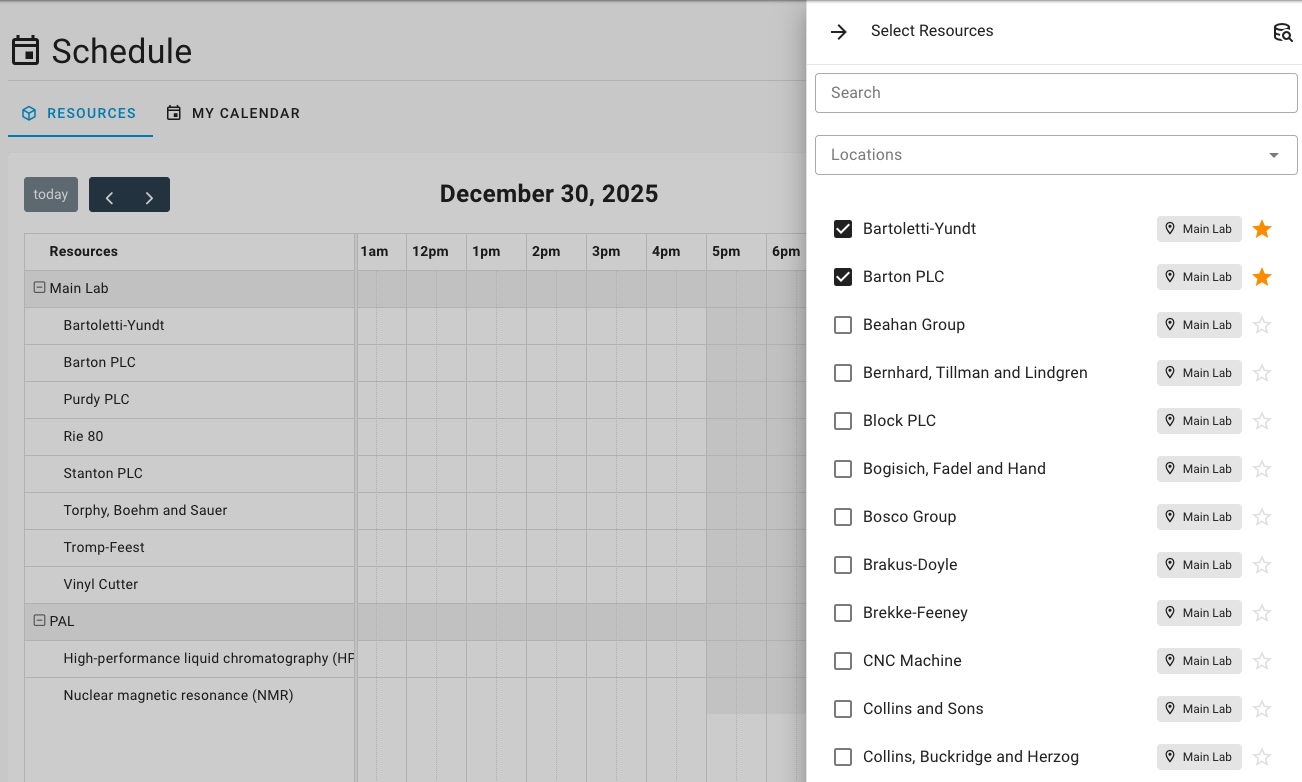
Steps to Create a Booking
- Navigate to Schedule
- Ensure the correct resource is visible
- Click and drag across an available time range
- Review booking details
- Submit the booking
Colabmacs will automatically check access rules before confirming the booking.
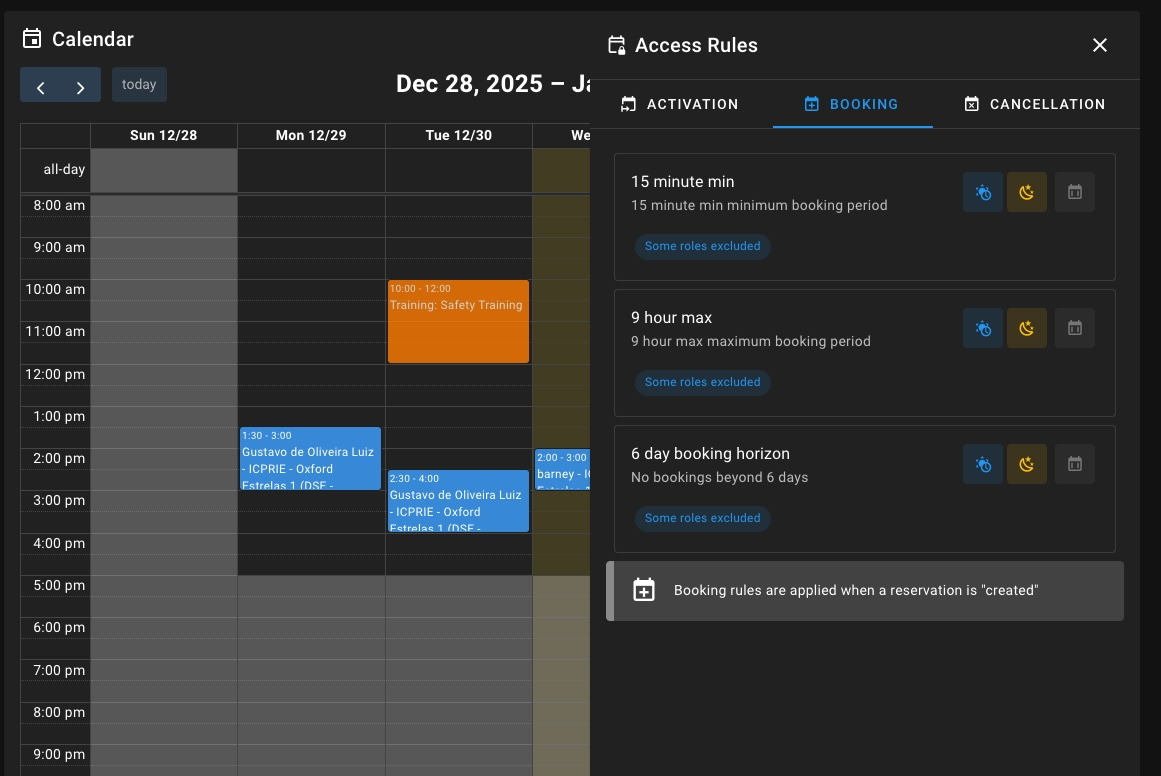
Access Rules
Access rules control when and how resources can be booked or used.
From a user perspective:
- You do not need to configure rules
- You only need to understand why a booking may be blocked
If a rule applies, Colabmacs will:
- Prevent booking or session start
- Clearly explain what is required (training, approval, timing)
You can view applicable rules from the resource details panel.
Booking Lifecycle (States)
Bookings move through several states automatically.
| State | Calendar Color | Meaning |
|---|---|---|
| Pending | ⚪ | Time is being temporarily held |
| Confirmed | 🔵 | Booking is fully reserved |
| Active | 🟢 | Booking time has started |
| Late | 🟠 | No Booking has been started within the grace peroiod. (Started late) |
| Missed | 🔴 | Booking time passed without starting |
| Finished | ⚪ | Booking completed or released with a session |
Visual cues (such as color changes) help you quickly identify the current state.
Starting a Session
When a booking becomes Active, you may see a Begin Session button.
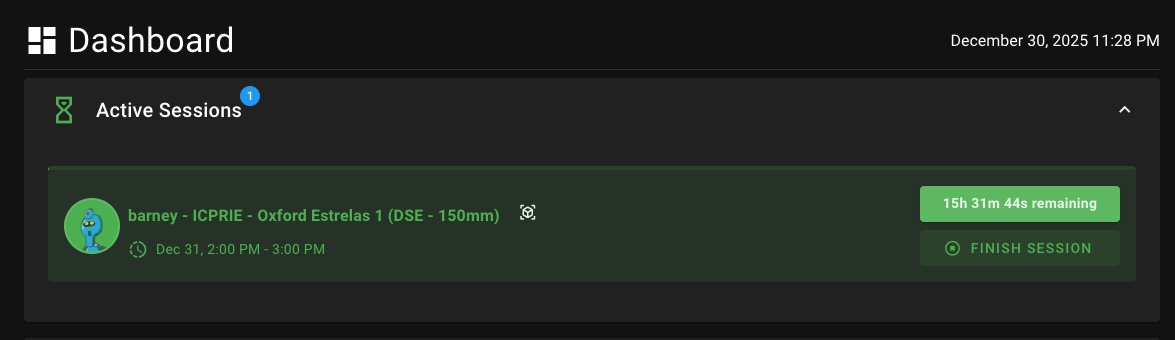
Starting a session:
- Confirms you are using the resource
- Begins usage tracking
- May be required to avoid being marked Late or Missed
Active Sessions
Active sessions appear prominently in:
- The Dashboard
- The Active Sessions panel
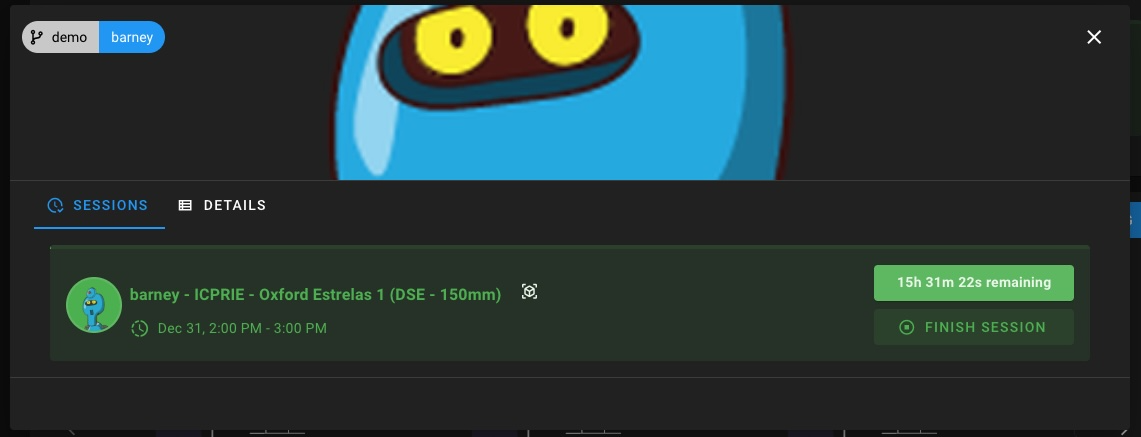
From here you can:
- Monitor remaining time
- End the session when finished
Finishing a Session
Ending a session:
- Stops usage tracking
- Creates a usage record
- Finalizes the booking state
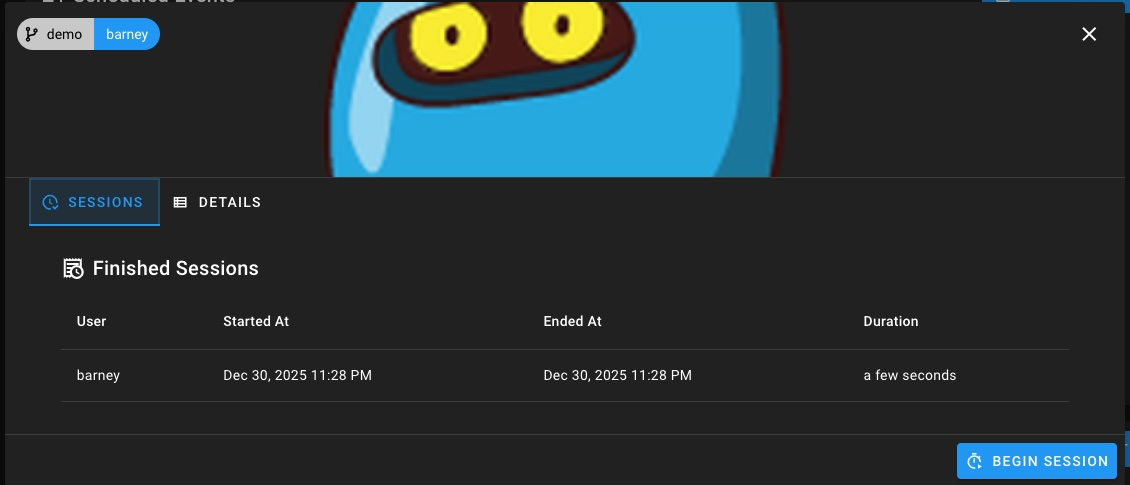
Some facilities automatically end sessions when the booking window expires.
Finish & Release Booking

Colabmacs also supports Finish & Release Booking.
This lets you indicate that you are done using the resource before the original booking window ends.
When you release a booking:
- The booking is transitioned to the Finished state immediately
- The event changes to the Finished visual style (typically grey)
- Other users can clearly see that the resource has been released
This is useful when you finish early and want to signal that the resource is available for others to use.
Two Ways to Release a Booking
From an Active Session
If you currently have an active session:
- Open the Active Sessions panel
- Click the down-arrow next to Finish Session
- Choose Finish & Release Booking
- Confirm the action
This ends the session and marks the booking Finished immediately.
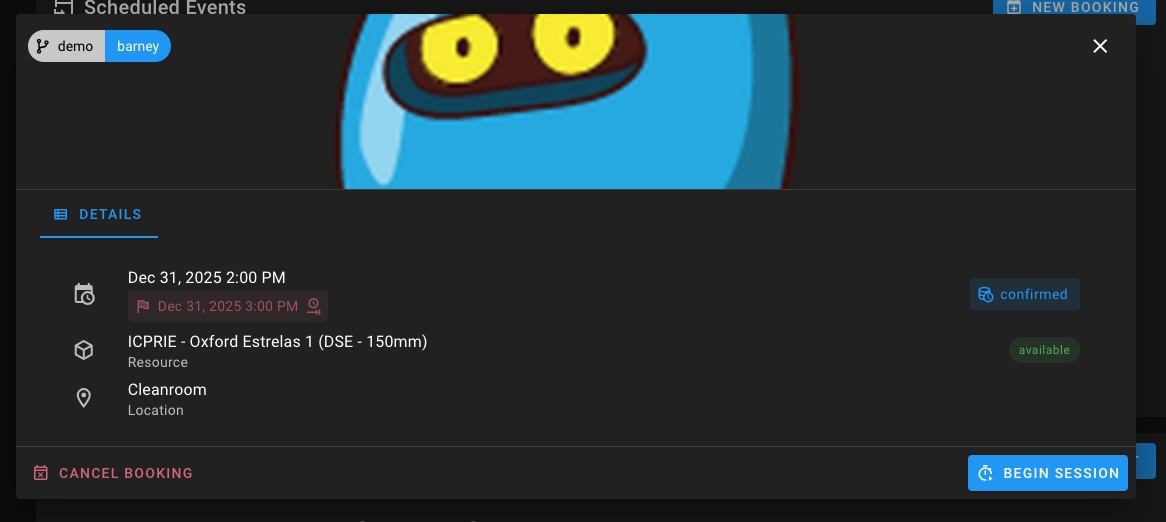
From the Booking Detail View
If there is no active session, you may still be able to release the booking from the booking detail page.
Important behavior:
- Release Booking appears only if the booking has already had an active session
- If no session has started yet, you will see Cancel Booking instead
This distinction helps separate:
- Ending a booking after the resource has actually been used
- Cancelling a booking that was never used
Example Use Case
Suppose you book a microscope from 1:00 PM to 3:00 PM, but finish your work at 2:10 PM.
If you use Finish & Release Booking:
- Your session ends normally
- The booking moves to Finished
- Other users can see that the booking has been released
- Depending on the facility’s booking rules, someone else may be able to use or book the remaining time
Editing or Cancelling Bookings
You can manage your bookings from:
- My Calendar
- Booking details view
What You Can Do
- Move bookings (drag & drop)
- Adjust duration (if allowed)
- Cancel bookings before they start
- Release a booking after usage has started and finished early
When editing a booking:
- Other users’ bookings may appear as background events
- This helps you avoid conflicts
Common Scenarios
Booking Turns Late
If you do not start a session within the allowed grace period:
- Booking may be marked Late
- Access may be restricted
- Facility policies may apply
Booking Is Missed
If no session is started before the booking ends:
- Booking becomes Missed
- No usage record is created
- Charges typically do not apply
Best Practices
- Start sessions promptly when bookings become active
- Review resource requirements before booking
- Cancel bookings you cannot attend
- Use My Calendar to manage your schedule efficiently