

Team & User Management
Teams and users form the organizational backbone of Colabmacs. From an administrative perspective, they define who can collaborate, which projects they belong to, and how access, billing, and accountability are structured across the facility.
This section covers how to manage Teams and Users from the admin interface.
Teams
Overview
Teams group users together for collaboration, project ownership, and billing.
A team may own one or more projects and can be configured to control how users discover and join it.
Teams are commonly used to represent:
- Departments
- Research groups
- Classes or cohorts
- External collaborators
- Cross-functional working groups
Viewing Teams
Navigate to Resources → Teams to view all teams.
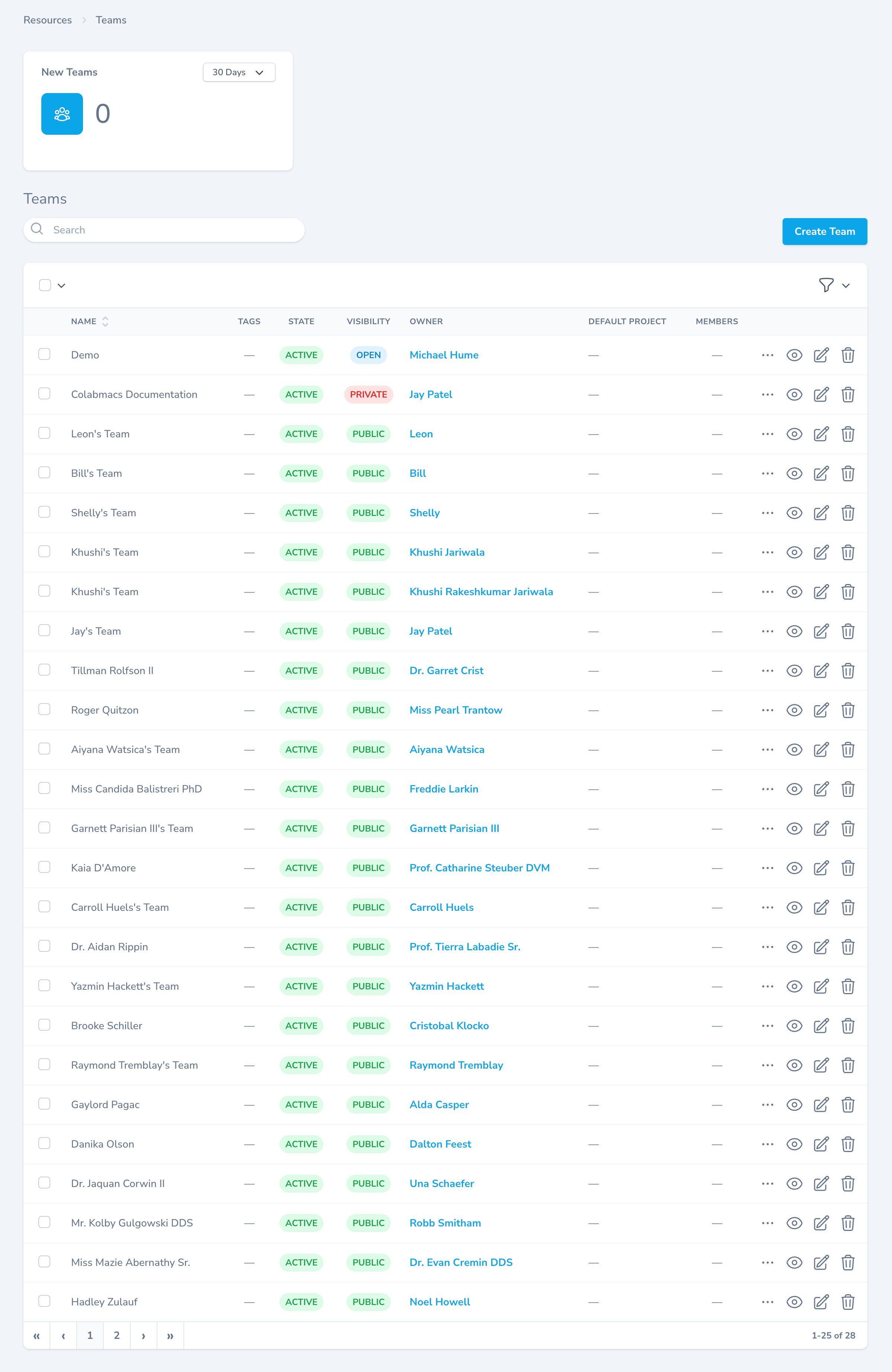
The teams list provides a high-level overview of activity and structure across the facility.
Dashboard Insight
New Teams (30 Days) highlights recent growth and onboarding trends.
Team List Columns
| Column | Description |
|---|---|
| Name | Team name |
| Tags | Optional organizational tags |
| State | Active or inactive |
| Visibility | Public, Open, or Private |
| Owner | Team owner |
| Default Project | Automatically assigned project |
| Members | Number of users in the team |
Team Visibility
Visibility controls how teams are discovered and joined:
| Visibility | Behavior |
|---|---|
| Public | Visible to all users, join by request |
| Open | Visible to all users, anyone may join |
| Private | Hidden from search, invite-only |
Changing visibility affects future discovery only — existing members are not removed.
New in This Release
Team management now includes scoped invitation roles, project-aware invitations, frontend default-project management, and automatic cleanup of team-owned project memberships when a member is removed from a team.
Team Ownership and Delegated Management
Each team has a Team Owner.
The Team Owner remains financially responsible for the team and, by default, can manage the team and its projects from the frontend experience without requiring a separate delegated team-member role.
Facilities can also delegate day-to-day team management by assigning appropriate team-member scoped roles to other members.
Creating a Team
From Resources → Teams, click Create Team.
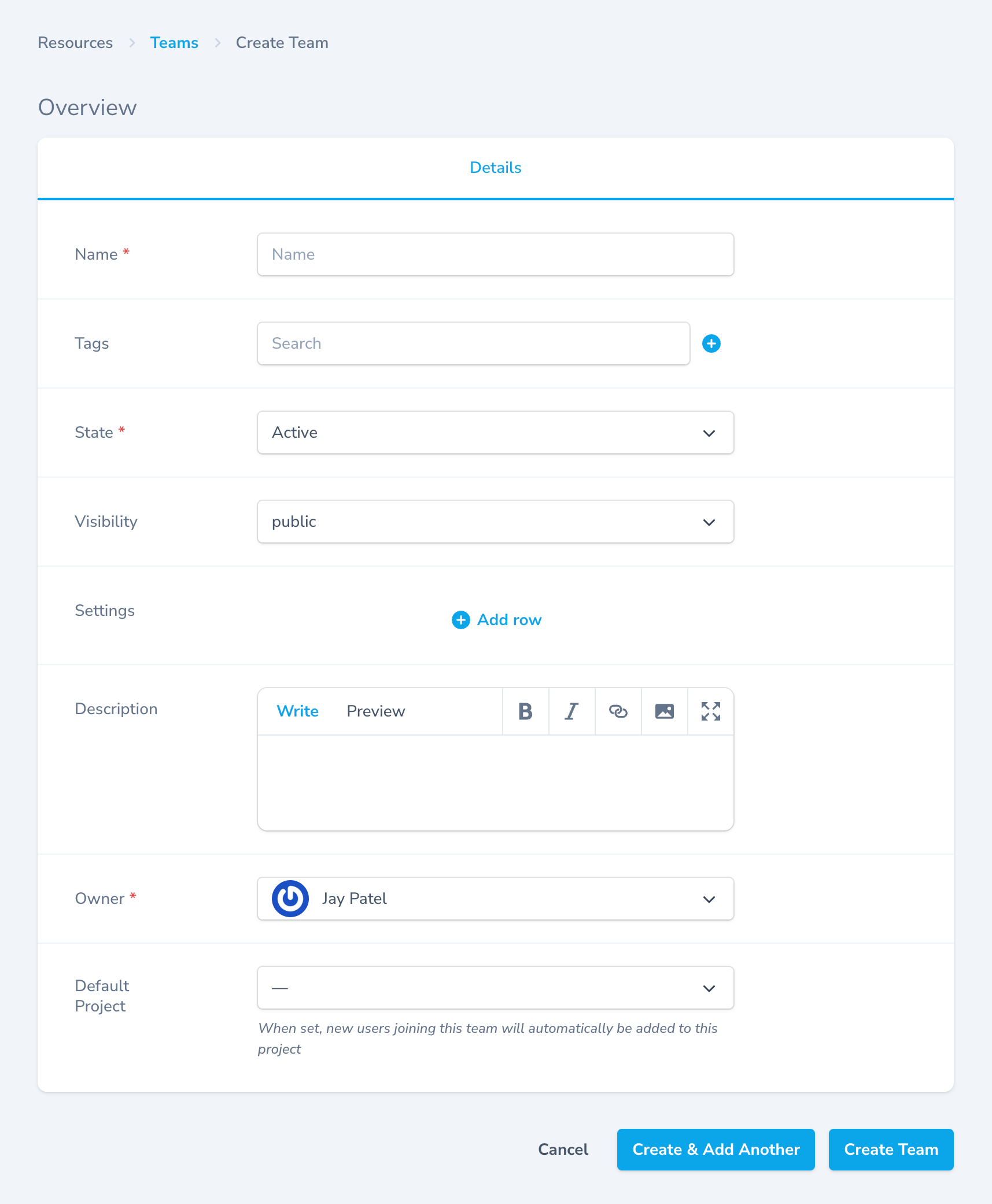
Required Fields
- Name – Descriptive team name
- State – Active or inactive
- Visibility – Public, Open, or Private
- Owner – Primary administrator for the team
Optional Fields
- Tags – For filtering and organization
- Description – Rich-text notes about the team
- Settings – Custom key/value configuration
- Default Project – Automatically assigns new members to a project
Default Project
Setting a default project simplifies onboarding by ensuring new members are immediately scoped correctly.
Team Details
Click a team name to view full details.
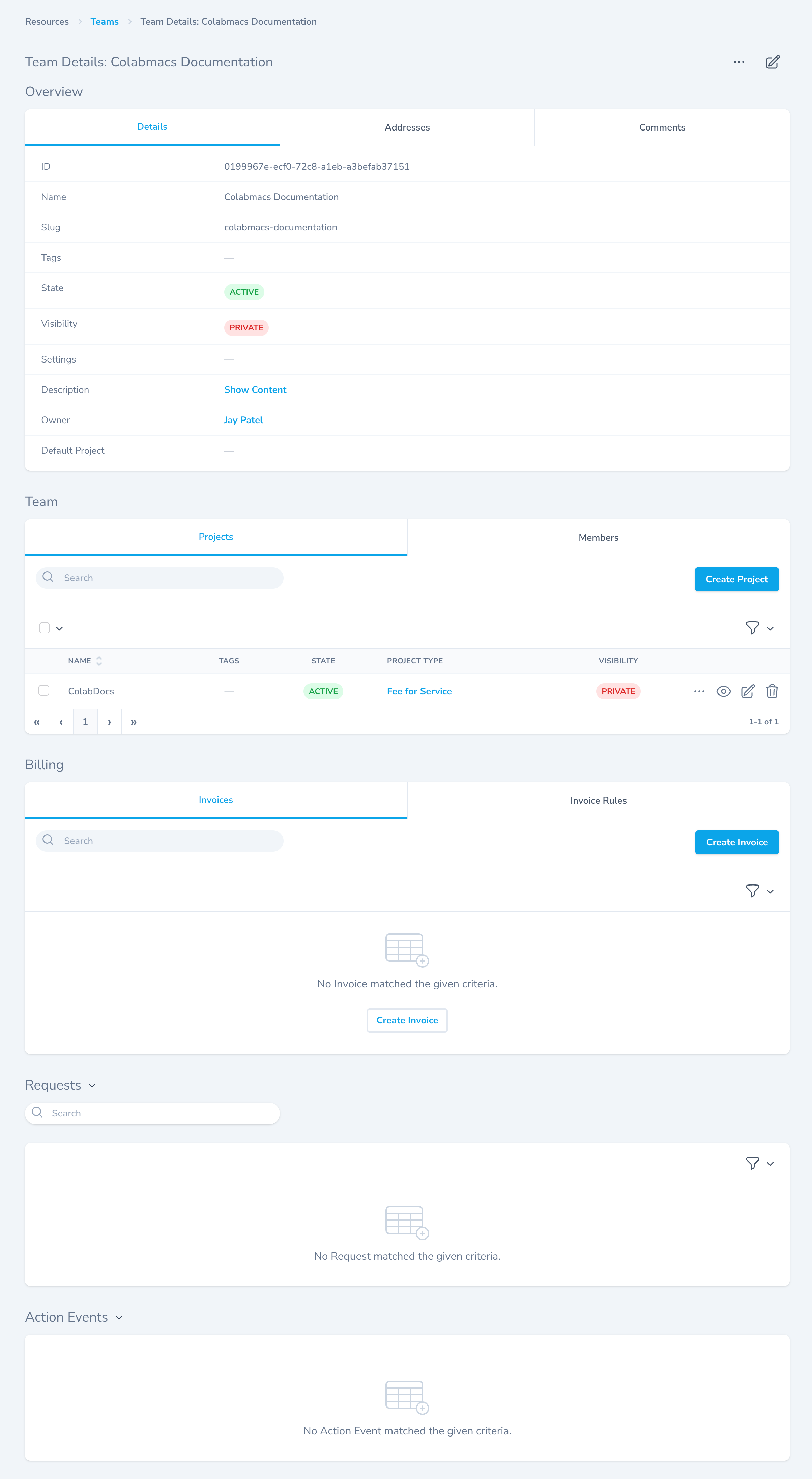
Overview
Includes:
- Metadata (ID, slug, state)
- Visibility
- Owner
- Description
- Default project
Projects
- View and manage projects owned by the team
- Create new projects directly from this tab
Members
- View team members
- Add or remove users
- Manage team roles
- Review invitations and join requests
Billing
- View invoices associated with the team
- Configure invoice rules (if applicable)
Requests & Activity
- Review team-related requests
- Audit activity through action events
Managing Teams
Edit a Team
- Open the team
- Click Edit
- Update fields
- Save changes
Delete a Team
- Removes the team and its associations
- Members lose access immediately
Deleting a team is destructive.
Ensure all required data has been reviewed first.
Team Invitations
Team invitations can include both:
- A team-member role
- A project
This allows administrators and delegated team managers to invite someone into the correct team context in a single step.
If a project is selected, the invited user joins the team and is added to that project when the invitation is accepted.
If a team-member role is selected, that role is applied to the team membership when the invitation is accepted.
Default Project Management
Team managers can set the team’s default project from the frontend team UI.
This default project is commonly used to:
- Preselect a project during team invitations
- Provide a sensible starting project when a user switches into that team
The default project does not override project membership. Users must still belong to the project in order to use it.
Removing Team Members
When a user is removed from a team through the frontend:
- Their team membership is removed
- Their memberships in all projects owned by that team are removed as well
This keeps team and project access aligned.
Users
Overview
Users represent individual people who interact with your facility.
Each user may belong to multiple teams, participate in multiple projects, and generate usage, training records, and requests.
Viewing Users
Navigate to People → Users.

User List Columns
| Column | Description |
|---|---|
| Name | Full name |
| Last Active | Most recent login |
| Current Team | Active team context |
| Current Project | Active project context |
| State | Active or inactive |
| Login email | |
| Visibility | Public or private profile |
User Details
Click a user to open their profile.
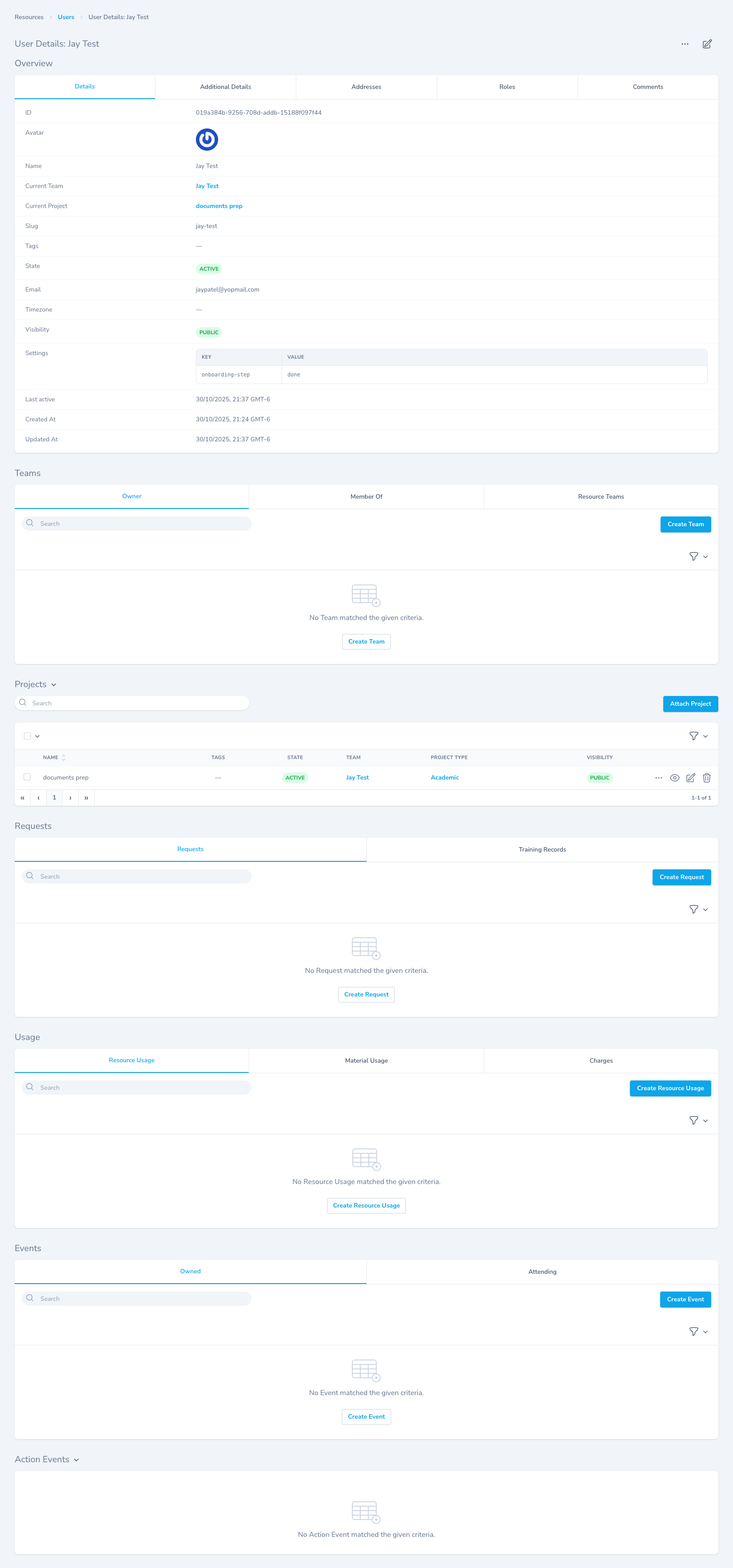
Details
- Identity and contact information
- Current team and project
- Account state and visibility
- Activity timestamps
Roles
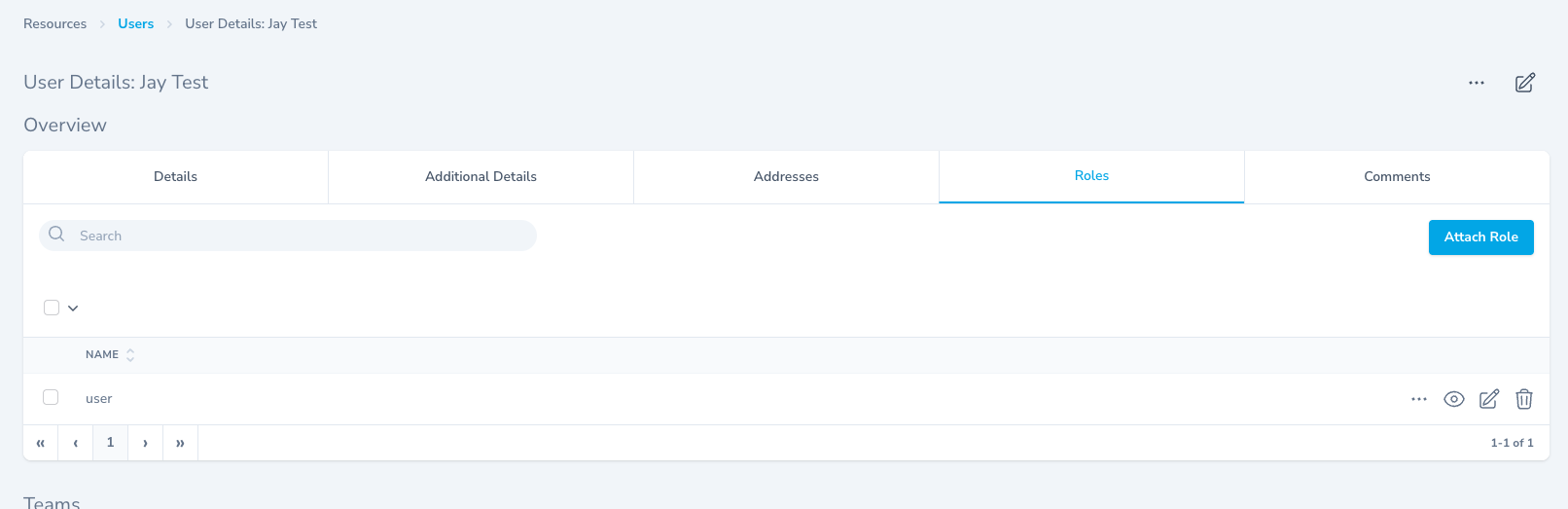
- View and manage assigned roles
- Attach or detach roles as needed
Additional Sections
- Addresses
- Comments
- Custom fields
User Relationships
Teams
- Teams the user owns
- Teams the user is a member of
- Resource-specific team associations
Projects
- Projects the user participates in
- Attach or remove project memberships
Requests
- Submitted requests
- Training-related requests
Usage & Charges
- Resource usage records
- Material usage
- Generated charges
Events
- Events created by the user
- Events the user is attending
Action Events
- Audit trail of system activity
Managing Users
Edit a User
- Update profile details
- Change state or visibility
User State
- Active – User can access the system
- Inactive – Access disabled, history retained
Visibility
- Public – Profile visible to others
- Private – Profile hidden
Roles & Permissions
Roles determine what a user can do within the system.
Common roles include:
usermanageradmintrainer
Roles are additive and can be adjusted at any time.
For membership relationships, role assignment is more specific:
- Team Member roles apply to team membership
- Project Member roles apply to project membership
- Resource Team Member roles apply to resource support assignments
When creating a role, mark the contexts it applies to so it appears in the correct assignment interfaces and does not get reused ambiguously across unrelated membership types.
Common Administrative Workflows
Onboarding a User
- Assign roles
- Add to teams
- Attach to projects
- Ensure required training is assigned
Offboarding a User
- Set state to Inactive
- Remove team and project memberships
- Preserve usage and audit history
Reviewing Activity
- Check last active date
- Review usage and training records
- Monitor requests and comments