
Usage Records
Usage Records
Overview
Usage Records track how resources are being utilized in Colabmacs. This feature provides detailed information about resource usage, including who used what, when, for how long, and associated costs. Usage tracking is essential for billing, reporting, and resource management.
Usage Records Overview
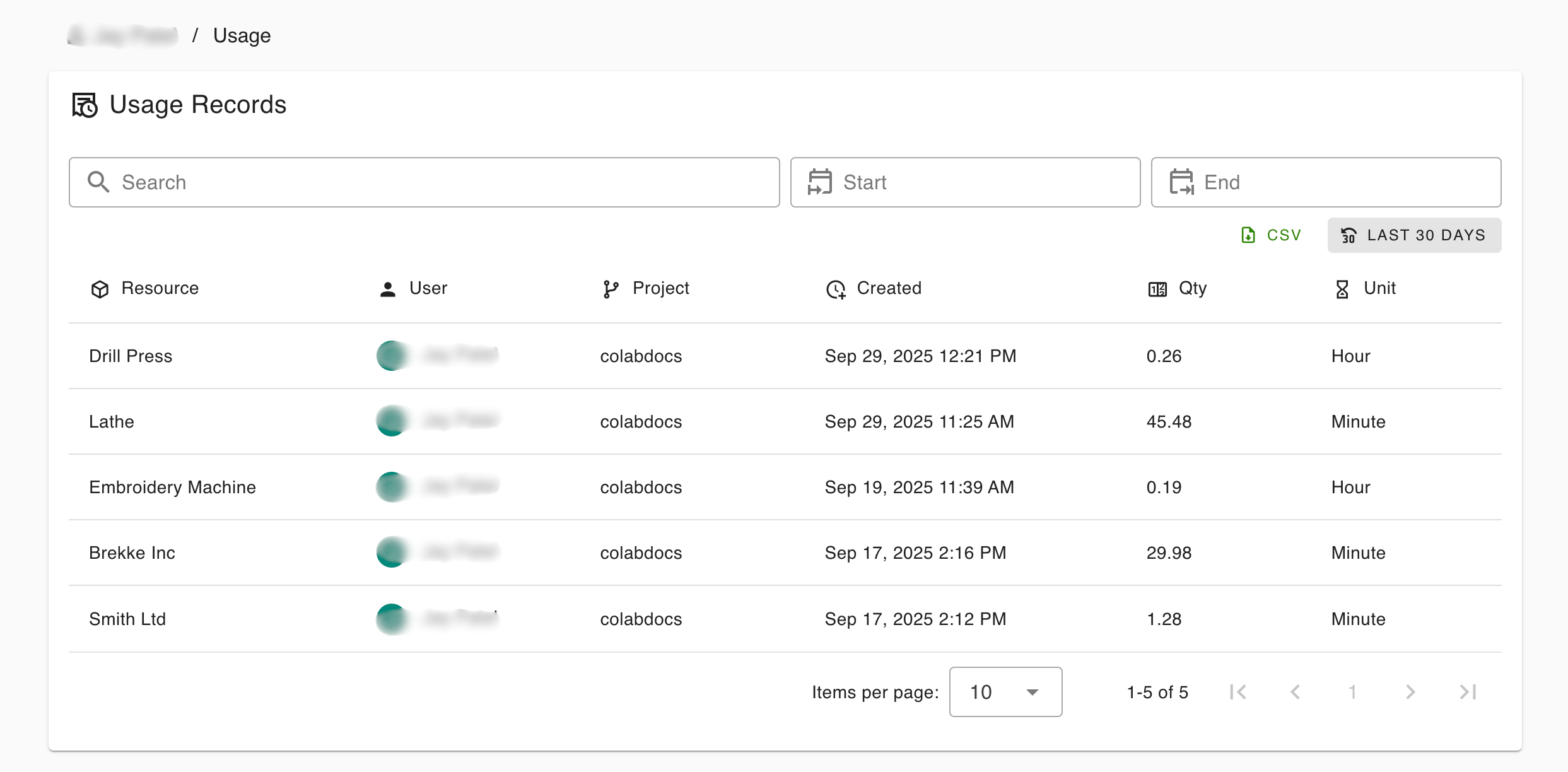
Page Features
The Usage Records page provides a comprehensive view of all resource usage with the following components:
Search and Filter Bar
- Search - Find specific records by resource name, user, or project
- Start Date - Filter records from a specific start date
- End Date - Filter records up to a specific end date
Export Options
- CSV - Export usage data to CSV format for external analysis
- LAST 30 DAYS - Quick filter to view usage from the last 30 days
Usage Records Table
Column Headers
| Column | Description |
|---|---|
| Resource | Name of the resource that was used |
| User | Person who used the resource (with avatar) |
| Project | Project associated with the usage |
| Created | Date and time when the usage was recorded |
| Qty | Quantity of usage (numeric value) |
| Unit | Unit of measurement (Hour, Minute, etc.) |
Understanding Usage Data
Resource Column
- Displays the name of the equipment or facility used
- Examples: "Drill Press", "Lathe", "Embroidery Machine"
- Click on a resource name to view detailed usage information
User Column
- Shows the user's avatar (circular icon with initials)
- Displays the full name of the user
- Example: "J - Jay Patel"
Project Column
- Indicates which project the usage is associated with
- Example: "colabdocs"
- Helps track resource allocation across projects
Created Column
- Timestamp of when the usage record was created
- Format: "MMM DD, YYYY HH:MM AM/PM"
- Examples: "Sep 29, 2025 12:21 PM", "Sep 17, 2025 2:16 PM"
Quantity (Qty) Column
- Numerical value representing amount of usage
- Can be decimal values (e.g., 0.26, 45.48, 29.98)
- Precision varies based on usage tracking
Unit Column
- Measurement unit for the quantity
- Common units:
- Hour - Usage measured in hours
- Minute - Usage measured in minutes
- Other units may be available depending on resource type
Viewing Detailed Usage Information
Opening Usage Details
Click on any usage record row to open a detailed modal view.
Usage Detail Modal
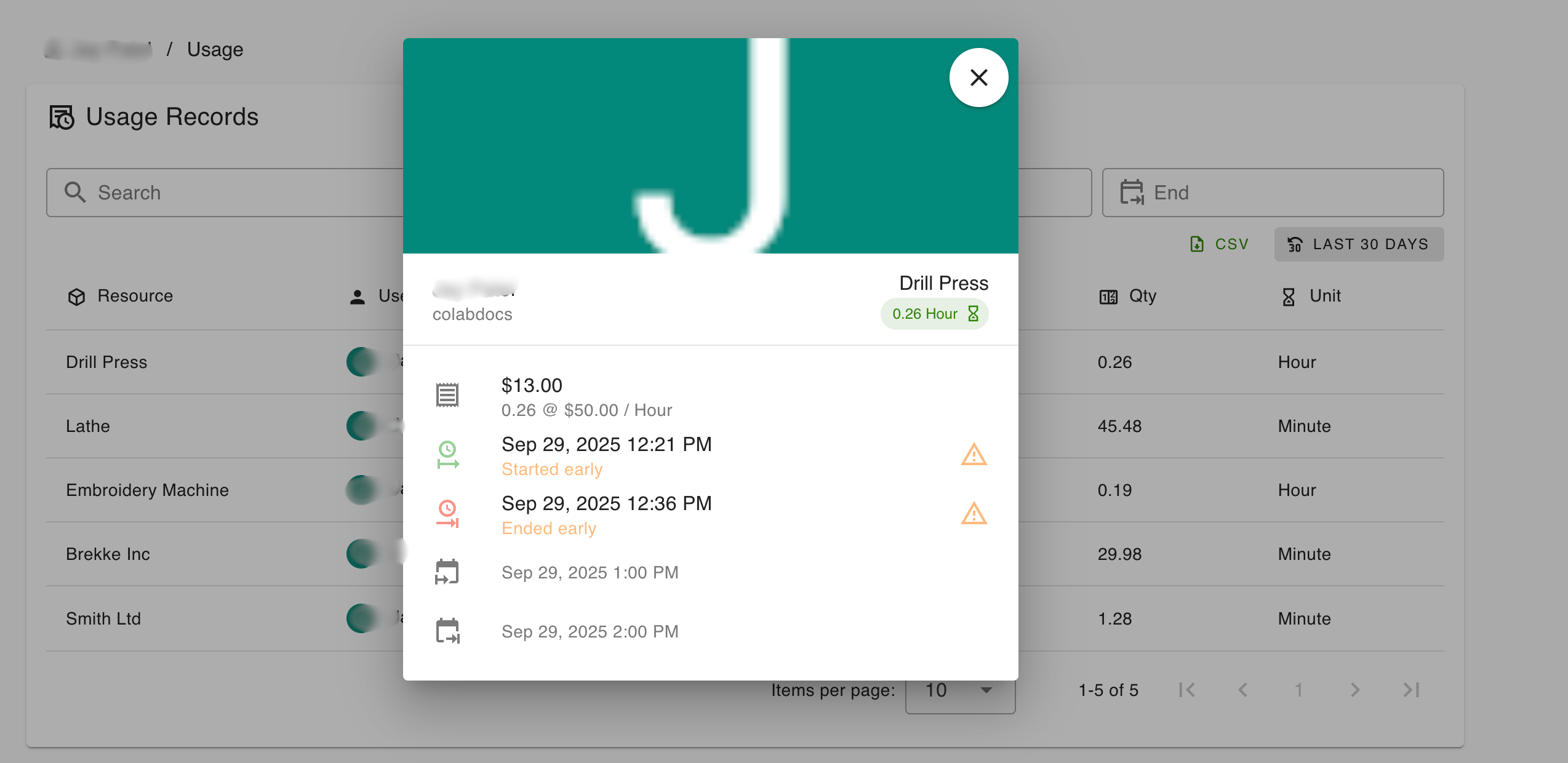
The modal displays comprehensive information about a specific usage session:
Header Section
- User Name - Who used the resource (e.g., "Jay Patel")
- Project Name - Associated project (e.g., "colabdocs")
- Resource Name - Large title showing the resource (e.g., "Drill Press")
- Usage Summary - Quick view of total usage with unit indicator
- Example: "0.26 Hour" with an hourglass icon
- Color-coded badge (green = completed usage)
Cost Information
💳 Total Cost
- Displays the calculated cost for the usage
- Format: "$13.00"
- Shows calculation breakdown: "0.26 @ $50.00 / Hour"
- Formula: Quantity × Rate per Unit = Total Cost
Timeline Information
Start Time
- 🕐 Start timestamp with "Started early" indicator
- Format: "Sep 29, 2025 12:21 PM"
- May include status indicators (⚠️ warning icon) for early starts
End Time
- 🕐 End timestamp with "Ended early" indicator
- Format: "Sep 29, 2025 12:36 PM"
- May include status indicators (⚠️ warning icon) for early endings
Scheduled Times
- 📅 Original booking start time: "Sep 29, 2025 1:00 PM"
- 📅 Original booking end time: "Sep 29, 2025 2:00 PM"
- Shows planned vs. actual usage times
Warning Indicators
⚠️ Early Start/End Warnings
- Appears when usage starts earlier than scheduled
- Appears when usage ends earlier than scheduled
- Helps identify deviations from planned bookings
Closing the Modal
Click the ✕ (close button) in the top-right corner to return to the usage list.
Filtering Usage Records
Date Range Filtering
Using Start and End Dates:
- Click the Start date field
- Select a start date from the calendar picker
- Click the End date field
- Select an end date from the calendar picker
- Records will automatically filter to the selected date range
Quick Filter:
- Click LAST 30 DAYS button for instant 30-day view
- Automatically sets date range to past 30 days from today
Search Filtering
Use the search bar to find specific records by:
- Resource name
- User name
- Project name
- Any text matching visible fields
Exporting Usage Data
CSV Export
- Apply any desired filters (date range, search terms)
- Click the CSV button (top-right, with file icon)
- A CSV file will be downloaded containing:
- All visible columns from the table
- Filtered results based on current search/date criteria
- Ready for import into Excel, Google Sheets, or other tools
Use Cases for Export
- Financial reporting and invoicing
- Resource utilization analysis
- Project cost tracking
- Audit trails
- Integration with accounting systems
Understanding Usage Calculations
Time-Based Usage
Hours:
- Calculated from start to end time
- Decimal format (e.g., 0.26 hours = ~15.6 minutes)
- Billed at hourly rate
Minutes:
- More precise for short-duration usage
- Decimal format (e.g., 45.48 minutes)
- May be billed at minute rate or converted to hours
Cost Calculation
Formula:
Total Cost = Quantity × Rate per UnitExample:
- Quantity: 0.26 hours
- Rate: $50.00 per hour
- Total Cost: $13.00
Early Start/End Impact
When usage starts or ends earlier than scheduled:
- Warning indicators appear
- Actual usage time is still accurately recorded
- Costs are based on actual usage, not scheduled time
- Helps identify booking inefficiencies
Common Usage Scenarios
Scenario 1: Checking Personal Usage
- Navigate to Usage Records
- Records automatically show your usage
- Review quantity and costs for each session
- Export to CSV for personal records
Scenario 2: Project Cost Tracking
- Use search to filter by project name
- Review all resources used for that project
- Sum costs to determine total project expenditure
- Export data for project reporting
Scenario 3: Monthly Billing Report
- Set Start date to first day of month
- Set End date to last day of month
- Click CSV to export monthly data
- Use for invoicing or budget reconciliation
Scenario 4: Resource Utilization Analysis
- Search for specific resource (e.g., "Drill Press")
- Review usage patterns across dates
- Identify high/low usage periods
- Make informed decisions about resource availability
Tips for Effective Usage Tracking
For Users
- ✅ Start and end usage sessions on time
- ✅ Select the correct project for accurate cost allocation
- ✅ Review usage records regularly for accuracy
- ✅ Report any discrepancies immediately
For Administrators
- ✅ Set appropriate rates for resources
- ✅ Monitor usage patterns to optimize scheduling
- ✅ Use export features for regular reporting
- ✅ Review early start/end warnings to identify issues
Best Practices
- Regular Reviews - Check usage records weekly or monthly
- Export Regularly - Keep CSV backups for historical data
- Accurate Project Assignment - Always associate usage with correct projects
- Timely Reporting - Report errors or concerns promptly