
Resources
Resources
About Resources
Resources refer to the physical equipment, spaces, and shared assets within a facility that are managed, tracked, and categorized to ensure organized access and usage. Each resource resides in a specific location and includes detailed specifications, access requirements, and booking rules. Schedules can be applied to indicate maintenance or holiday closures, while access is controlled through defined Training Sessions and Access Rules. Overall, Resources form the core of the system, providing a centralized way to manage and monitor the availability, condition, and accessibility of a facility’s valuable assets.
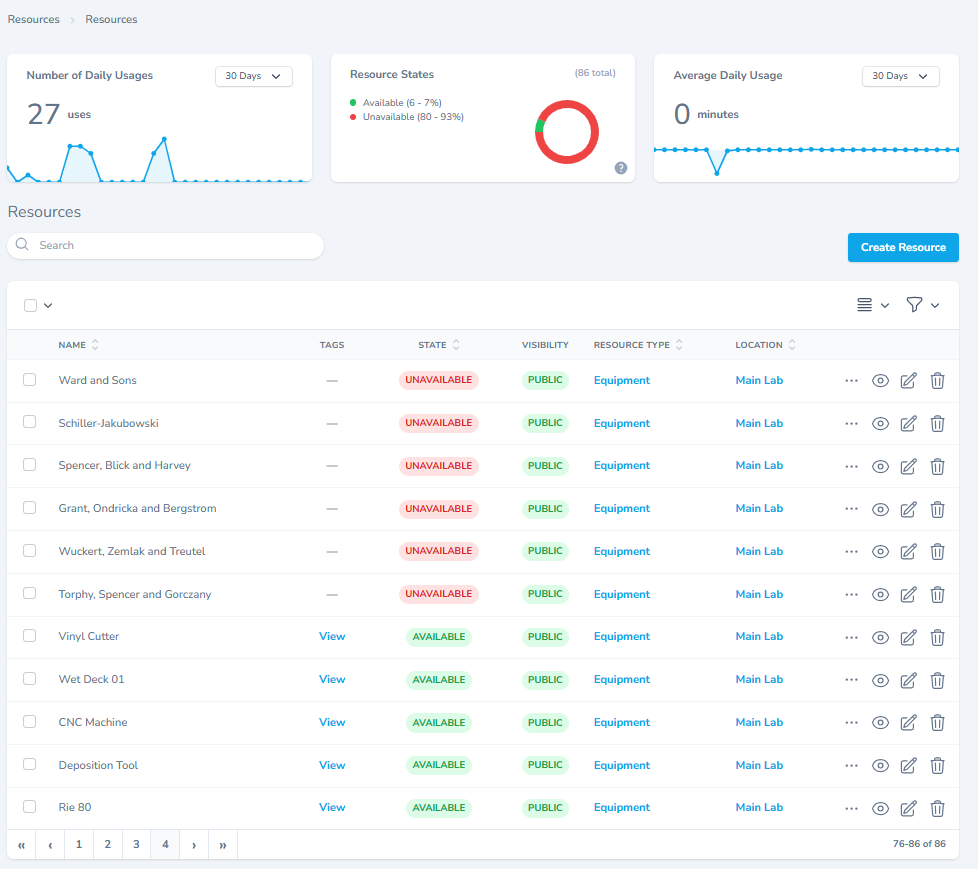
Create New Resources
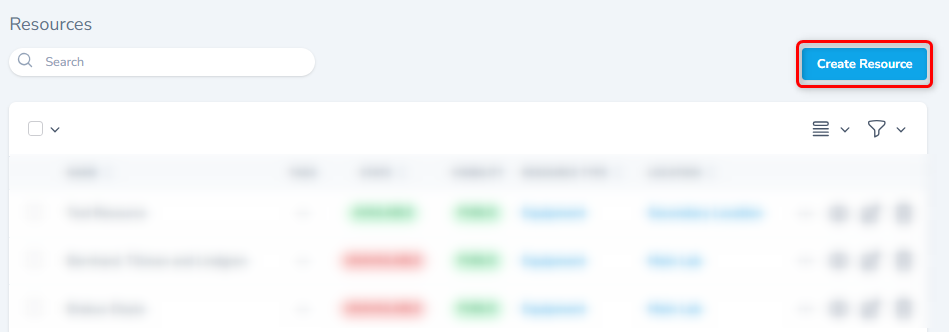
From the listing screen, click the Create Resources button.
The system will display the form shown below. Fill in the appropriate details to create a new Resource.
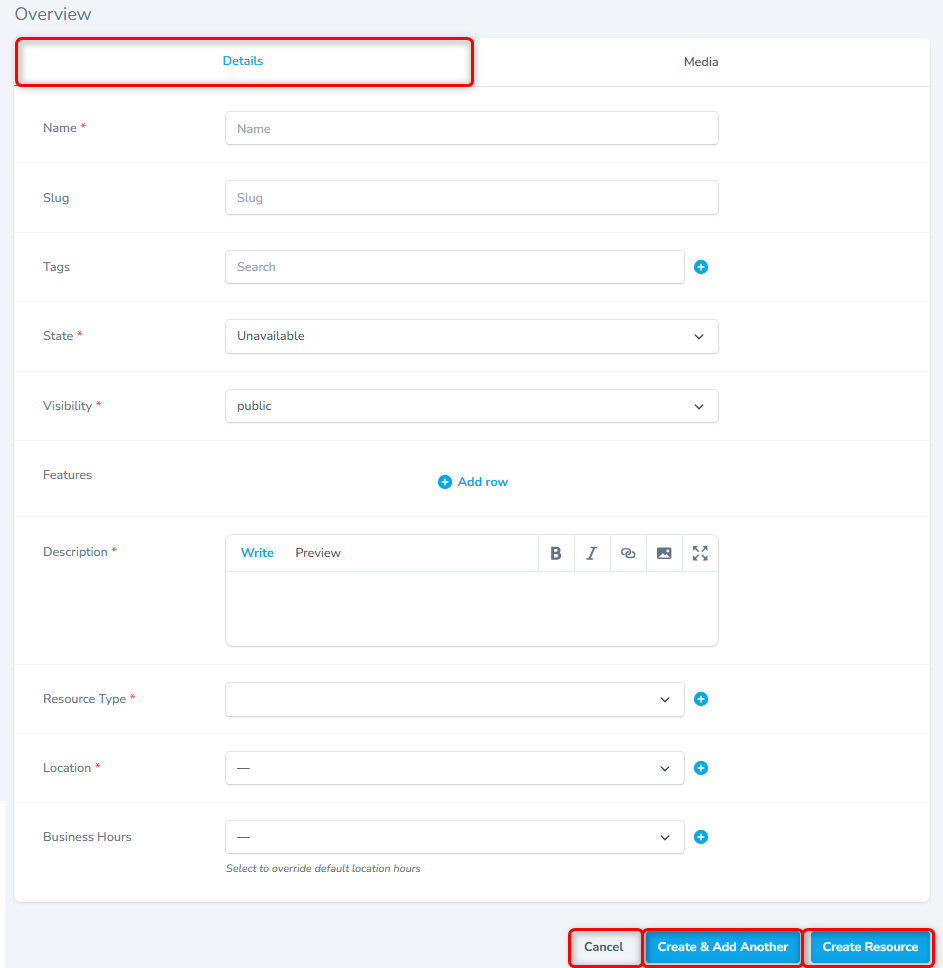
- Enter the name of the Resource.
- Select the state of the Resource. Users can choose from [Available, InUse, Maintenance, Unavailable].
- Select the resource visibility. A resource's availability can be set to Public or Private.
- Add Feature.
- Select the appropriate resource type. Colabmacs supports two types of resources, which are configurable and can be manages.
- Location is required, and while the resource inherits the location’s business hours by default, these hours can be overridden if needed.
- To attach documents or images to this record, click the Media tab to view the screen shown below.
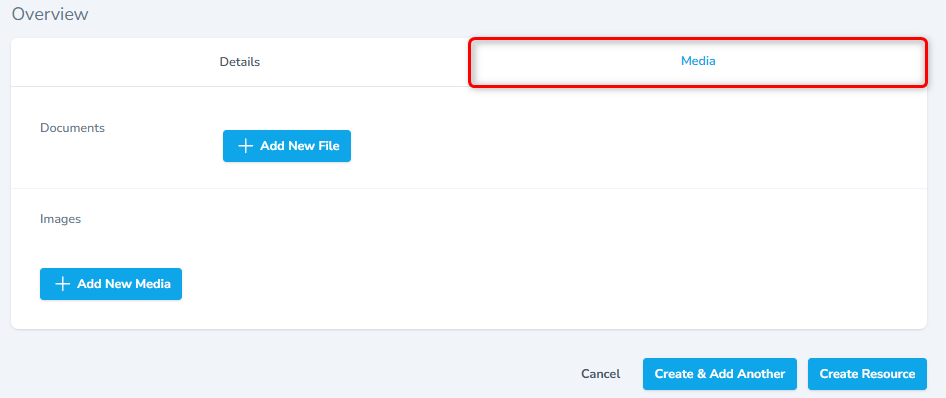
- Click the + Add New File button to attach file, or click the + Add New Media button to attach images.
- To save the record, click the Create Resources button.
- To save this record and add another record, click the Create & Add Another button.
- To close without saving, click the Cancel button.
Tips
When adding multiple Resources, use the Create Create & Add Another function to add records more efficiently.
Resource Features and Specifications
Each resource may include a set of features listed in the description box. These features outline the specifications and capabilities of the resource. For instance, if you want to know the available dimensions—such as width, height, or depth—these details can be defined within the description.
This section can represent both real and fictional resources; for example, it could describe the available sizes of a 3D print deck or any other piece of equipment. All relevant specifications and measurements are clearly displayed to help users understand the resource’s characteristics and availability.
Team Members
Assign and manage team members responsible for maintaining or supervising the resource.
Team roles define levels of responsibility — such as owner, technician, or support staff — ensuring accountability and proper management.
Resource Team Members allow for the specification of specific Users who have a relationship to a given Resource. Typically, this may include maintenance, process or training staff. Each Team member may be assigned one or more roles that determine their relationship to the Resource. These roles may then be used to determine participation in Requests based on the Request-type.
Media
Attach relevant images, videos, or manuals to provide users with visual context and operating instructions.
This helps new users familiarize themselves with the resource quickly.
Links
Include external or internal links related to the resource — such as documentation, datasheets, safety protocols, or supplier pages — to keep all information easily accessible in one place.
Training
Overview
Training ensures that users have the required skills, safety understanding, and authorization before accessing a resource. Each resource can be linked to one or more training modules. Users must complete the assigned training before they can book or operate the resource.
Selecting Available Training
In the Training section of a resource:
- Use the Available Training dropdown to select an existing training module.
- If no training exists for that resource, click Attach Training to add one.
Creating a New Training Module
Note
Check out on How to Create a New Training.
Attaching Training to a Resource
Once the training module is created:
- Return to the resource’s Training section.
- Select the newly created training from the Available Training list.
- Attach it to the resource. Users will now be required to complete this training before they can book or use the resource
Note
Only users who complete the assigned training are eligible to book or use the resource.
Tips
For more details on creating, managing, and tracking training modules, visit: Training Management
Access Rules
Access Rules control who can use a resource, when they can use it, and under what conditions. These rules ensure safety, compliance, and proper usage of high-value or sensitive equipment.
The Access Rules module includes:
- Activation Rules – control when a resource can be activated or started
- Booking Rules – control when a resource can be booked or reserved
- Cancellation Rules – control when a booking can be cancelled
Each rule type follows the same structure but applies to a different phase of resource usage
Key Concept
Access Rules ensure that only qualified individuals can use high-value or sensitive resources safely.
Configuring Access Rules
When creating a new access rule, fill in the following fields:
| Field | Description |
|---|---|
| Name | A descriptive rule name (e.g., “Buddy Required After Hours”). |
| Rule | Select one of the predefined rule types (see list below). |
| Parameters | Add key–value pairs required by the rule (examples below). |
| After Hours | Define conditions that apply outside business hours. |
| Business Hours | Rule conditions that apply during standard operating hours. |
| Weekends | Set weekend-specific restrictions. |
| Description | Provide details explaining the purpose and scope of the rule. |
Examples of Parameters
| Key | Value | Maeaning |
|---|---|---|
| maxConcurrentUsers | 1 | Only one user can operate the resource at a time. |
| requiredTemp | 22°C | Resource must meet temperature requirement before activation. |
| infrastructureID | CoolingWater-A1 | Must check this infrastructure before operation. |
Tips for Good Practice
Keep rule names short and descriptive (e.g., “Staff Only After Hours”).
- Regularly review rules to remove outdated permissions.
- Pair access rules with training and interlocks for safety.
- Always test the rule after creation by simulating a booking.
Hardware
Hardware configurations describe the physical setup, infrastructure, and connected systems of a resource.
Infrastructures
Lists the hardware components or networked devices that the resource depends on — such as sensors, controllers, or IoT connections.
Resources often depend on infrastructure components to operate properly. Examples might be power, cooling water, N2, Process Gasses, House Vacuum, etc.. Infrastructure can be defined in order to establish this dependence. Through the use of Rules, access can be restricted if required infrastructure is unavailable. Infrastructure component can also be associated with Locations. Through this relationship, all Resources in a given location may become unavailable if that Location's infrastructure is down.
Schedules can be used to configure advanced outage of infrastructure components - this can be combined with Booking Rules to prevent Resources from being booked during a scheduled outage period.
Configuration
Defines how the resource is set up or calibrated, including hardware parameters, control software, or operational modes.
Resources may often have various configurations that require some physical changes to me made to the resource. These can be represented through Configurations. Configurations are specific to a resource and may be selected at the time of reservation (and enforced through Booking Rules or Activation Rules). When creating a configuration, the available options are created as a list of key-value pairs. You may optionally specify the amount of notice required (in hours) for the configuration change to be made. This duration can then be enforced through the rules. It is important to maintain the correct current configuration in order for the Rules to be applied accurately. After creating a new Configuration, you can select the current configuration from the available options.
Parameters
Specify measurable or adjustable variables such as temperature, speed, pressure, or power level.
These parameters help monitor performance and ensure operational consistency.
Parameters are associated with Resources and can be configured to capture additional information which is then associated with the specific Usage Record. When associating a Parameter with a Resource, it is necessary to indicated if the Parameter is Required Before or Required After the usage event. It may also be required for both.
| Require | Behaviour |
|---|---|
| Before | Prompt user for parameter prior to Activating Resource |
| After | Prompt user for parameter when completing usage |
Parameters values are associated with the Usage Record and can be visualized for a given Resource.
Interlocks
Interlocks provide automated safety mechanisms — ensuring a resource cannot operate unless certain conditions are met (e.g., safety door closed, power enabled).
Note
Interlocks prevent unsafe operation and help enforce compliance with facility safety standards.
Process
The Process section outlines the resource’s workflow or standard operating procedures (SOPs).
It can define how users interact with the resource, from booking and preparation to completion and shutdown steps.
Info
Defining a clear process helps ensure consistent, safe, and efficient resource usage.
Usage
The Usage module tracks and manages how each resource is being utilized.
Bookings
Allow users to reserve a resource for specific time slots based on its availability.
Bookings follow access and training rules to ensure proper usage control.
Usage Records
Maintain a history of all resource interactions, including who used the resource, when, and for how long.
This provides an audit trail for accountability and performance tracking.
Each time a resource is actually "used" a Usage Record is created. Usage Records can be used to generate a Charge for the usage. If a Usage Record is associated with a reservation event, it will include additional information about the difference between the scheduled start time and end time, and the actual start and end times. The Usage Record also contains information about any Parameters or Materials that are associated with the usage.
Before a Charge can be generated for a Usage Record, the Resource must first have an associated Rate that is in the Rate Group associated with the Project that the Usage is captured in. If there is no Rate, no charge will be generated. If a Usage Record already has an associated Charge, it will be skipped when generating Charges.
Schedules
Define recurring availability, maintenance, and holiday closures.
Schedules help prevent conflicts and ensure the resource is available during defined operational hours.
Communications
The Communications section enables direct interaction between users, managers, and technical staff regarding a resource.
It may include:
- Announcements about resource status or updates
- User feedback and reports
- Maintenance notifications
Note
Keeping communication linked to each resource ensures transparency and timely issue resolution.
Action Events
Action Events represent automated or manual actions triggered by specific conditions — such as:
- When a resource is booked, started, or completed
- When a parameter exceeds a threshold
- When a safety interlock is triggered
These events can initiate automated workflows such as sending notifications, logging data, or locking access temporarily.
Tips
Action Events help automate responses, maintain safety, and streamline operational workflows.