
9. Types
9. Types
9.1 About Types
The Resource Type feature allows you to define and categorize different groups of resources within your facility. For example, you can classify equipment by "Microscopes," "3D Printers," or "Workstations." This helps organize your inventory and facilitates efficient management of similar assets.
9.2 Utility Functions
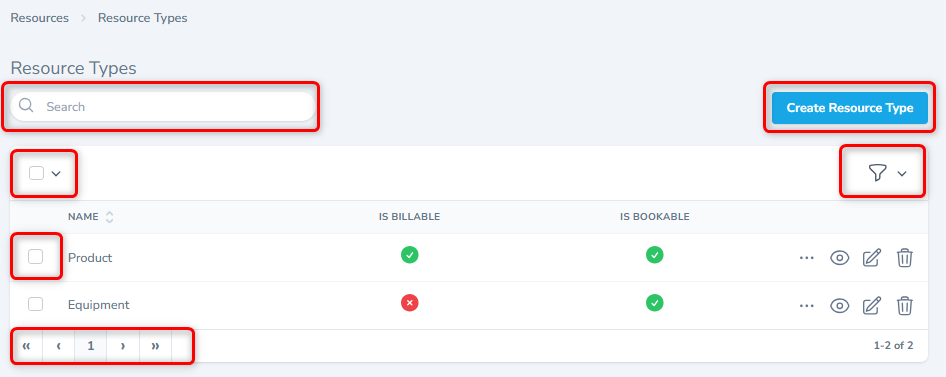
This frame has several utility functions designed to enhance your efficiency and control when managing data. These features provide streamlined ways to find, organize, and view your records, ensuring a flexible and user-friendly experience. Each utility function is explained below.
9.2.1 Searching Records
Each listing screen includes a dedicated search facility. By entering a phrase into the search bar, you can instantly filter the displayed records. This function enables efficient retrieval of specific information within large datasets, streamlining your search process.

9.2.2 Selecting Records
The colabmacs offers flexible record selection options to support various management tasks. You can select individual records, choose to select all records currently visible on the page, or select all total records across all pages. This functionality facilitates efficient bulk operations and data management.
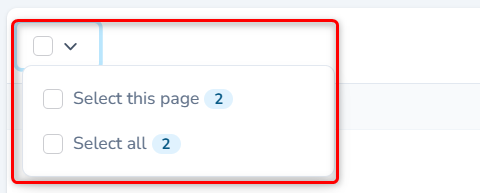
- Select this page selects all the records of the current page
- Select all selects all the records of all the pages.
!!! info "Info" - The number against the "Select this page" or "Select all" shows how many records are selected by each option.
9.2.3 Pagination
The pagination function in colabmacs provides clear controls for navigating through extensive lists of records. You can jump to any specific page number, or use the navigation buttons to move to the next, previous, first, or last page.

- Click << to navigate to the first page
- Click < to move back one page.
- Click >> to navigate to the last page
- Click > to move forward one page.
9.2.4 Display Options
You can customize the number of records displayed per page to suit your viewing preferences. Additionally, colabmacs provides options to filter records based on their status: "With Trashed" shows active and soft-deleted items, "Only Trashed" isolates deleted entries, and selecting "All" displays every record.
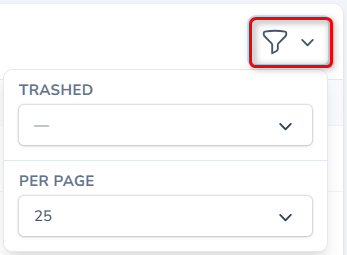
!!! info "Info" - The Display filter is dynamic and may display up to 4 filtration options, depending on the form being displayed.
9.2.5 Replicate Function
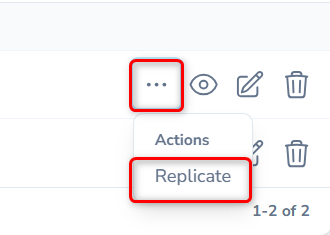
The Replicate function is available on all listing frames to streamline data entry. This utility allows you to quickly create a new record by duplicating an existing one. All fields from the original record are pre-filled, enabling rapid creation of similar entries with minimal manual input. Click the three dots (. . .) against a record in the listing frame to view this option, as shown below.
9.3 Create New Resource Type
From the listing screen, click the Create Resource Type button.
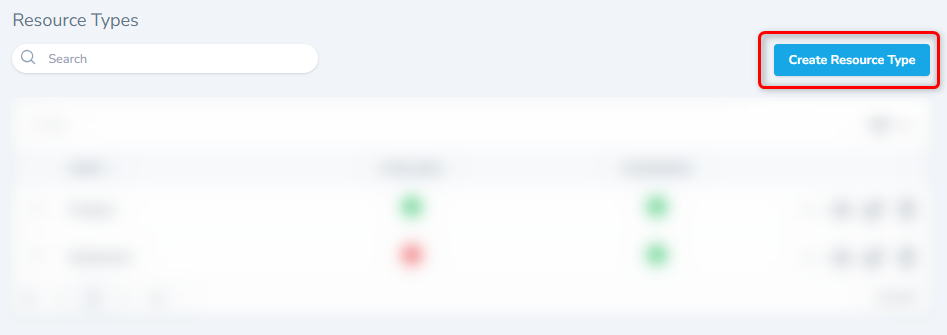
The system will display the form shown below. Fill in the appropriate details to create a new Resource.
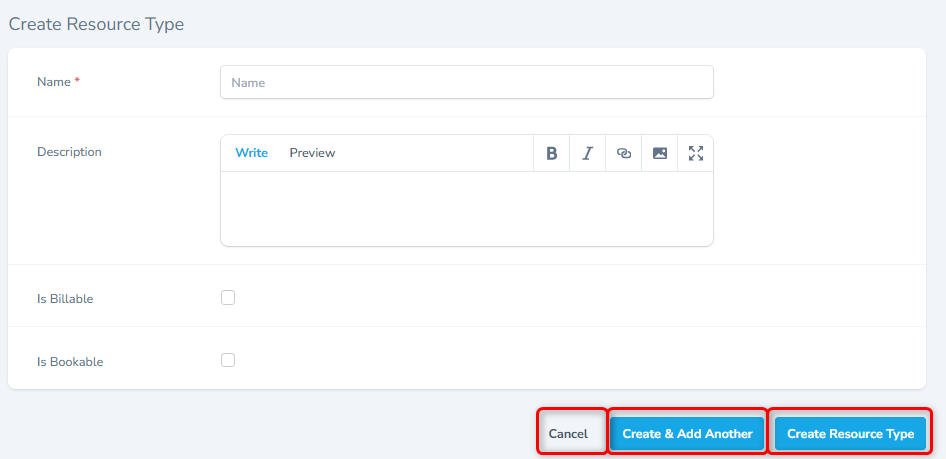
- Enter the name of the Resource Type.
- Check the option (Is Billable )to enable billing of this resource type.
- Similarly check the option (Is Bookable)to enable booking of this resource type.
- To save the record, click the Create Resource Type button.
- To save this record and add another record, click the Create & Add Another button.
- To close without saving, click the Cancel button.
!!! tip "Tip" - When adding multiple Types, use the Create Create & Add Another function to add records more efficiently.
9.4 View Record
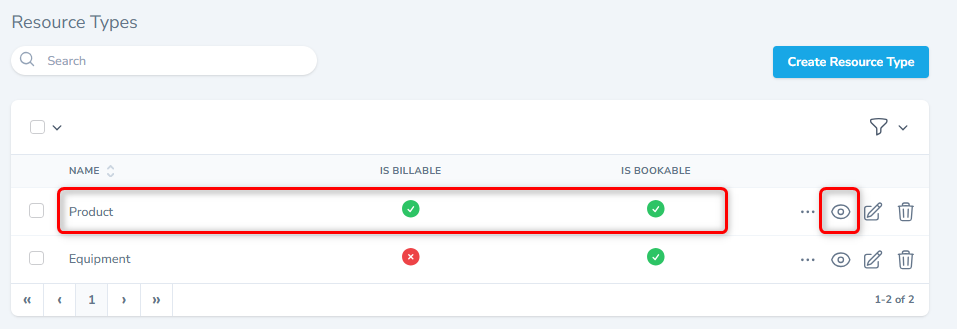
- From the listing screen, click the View button or click the record. The system will display a detailed form as shown.
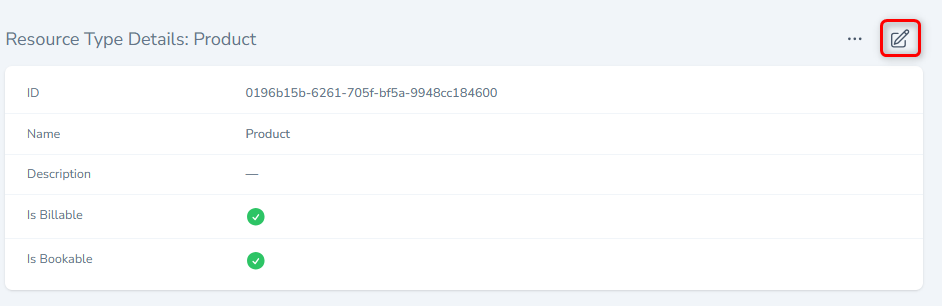
- The system shows the basic details of the Resource Type.
- To edit the details, click the Edit button.