
1. Login to Colabmacs App
1. Login to Colabmacs App
1.1 Login
Visit the Colabmacs App Website to view the login page as shown below.
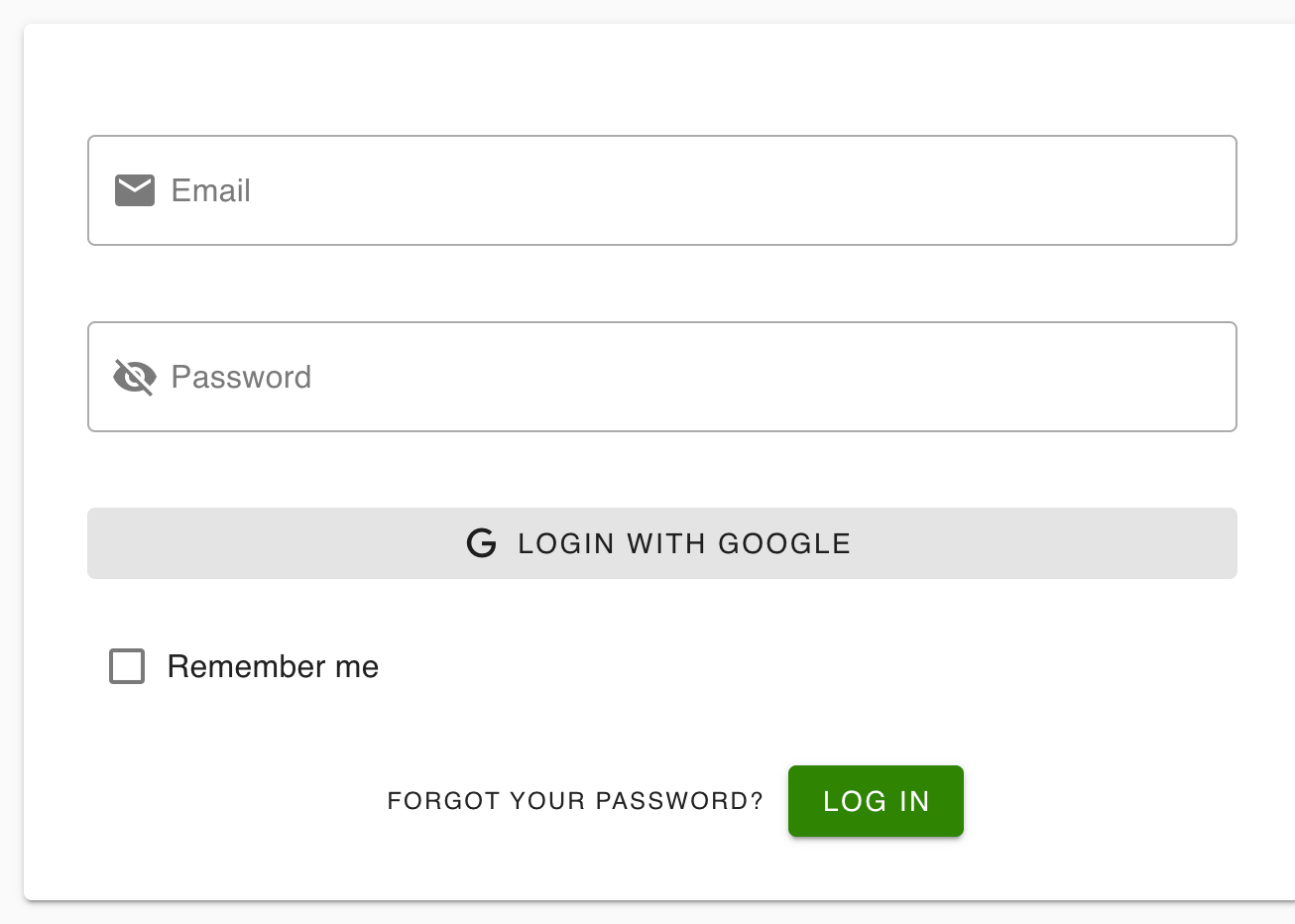
- Email Address: The username (typically an email address) to login to the Colabmacs App platform.
- Password: Secure password for the logging in to the Colabmacs App platform.
- LOGIN with Google: Navigates to the Google Signin screen to use your valid Google account to login to the Colabmacs platform.
- SIGN IN with Microsoft: Navigates to the Microsoft Signin screen to use your valid Microsoft account to login to the Colabmacs platform.
- LOGIN with GitHub: Navigates to the GitHub Signin screen to use your valid GitHub account to login to the Colabmacs platform.
- Remember Me: Saves your credentials to login using the same browser.
- Forgot your Password: Navigates to the Forgot Password screen for instructions on how to recover a forgotten password.
- Login: Click this button to sign-in.
1.2 Forgot Password
To recover a forgotten password, click the Forgot Password (Sr #7 in the login screen shown above). The system will show the dialog, as shown below.

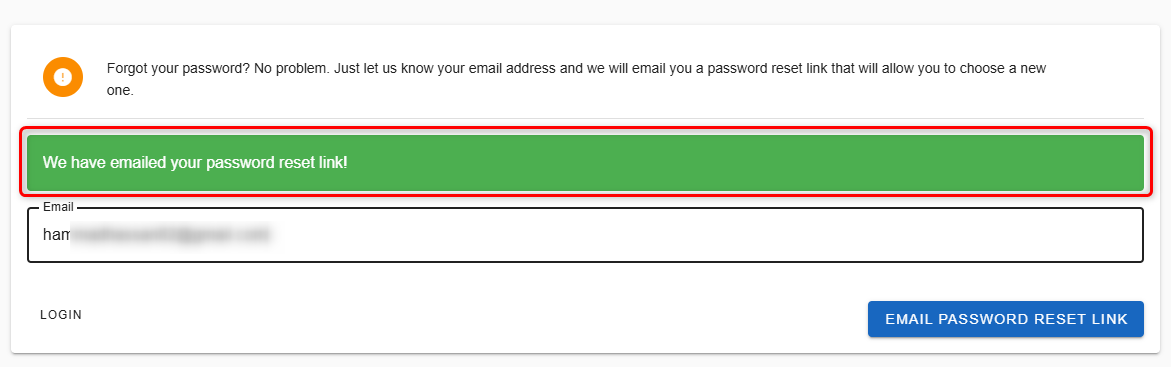
Enter your Email Address and click the EMAIL PASSWORD RESET LINK button to receive an email to recover your password. If you do not want to proceed, click the Login button.
Once you click the EMAIL PASSWORD RESET LINK button, the system will send an email and show you a confirmation badge as shown below.
You will receive an email from [email protected]. A sample email is shown below.
Email Link Validity
The Email link is valid for 30 minutes only.
In the email, click the Reset Your Password button to view the screen shown below.
Enter your new password and click Change password button to update your password.
Password Confirmation
New Password and Confirm Password fields must have the same password.