
Billing Guide
Billing Guide
Overview
⭐ Premium Feature: Billing features require a premium plan.
The billing system provides flexible rules for generating charges from resource and material usage. It supports quotes, invoices, rates, and automated charge generation with customizable billing rules.
Key Components:
- Quotes - Cost estimates for work
- Invoices - Collections of charges for billing
- Charges - Generated from usage records
- Rates - Pricing for resources and materials
- Rate Groups - Organize rates by customer type
- Billing Rules - Automatic adjustments to charges
Quotes
Quotes provide cost estimates before work begins. They can be attached to requests or created independently.
Viewing Quotes
Navigate to Resources → Quotes.
Dashboard Widgets:
- Quote Status - Distribution by state (0 total)
- New Quotes (30 Days) - Recent quotes (0, No Data)
Empty State: "No Quote matched the given criteria"
Creating Quotes
Click Create Quote.
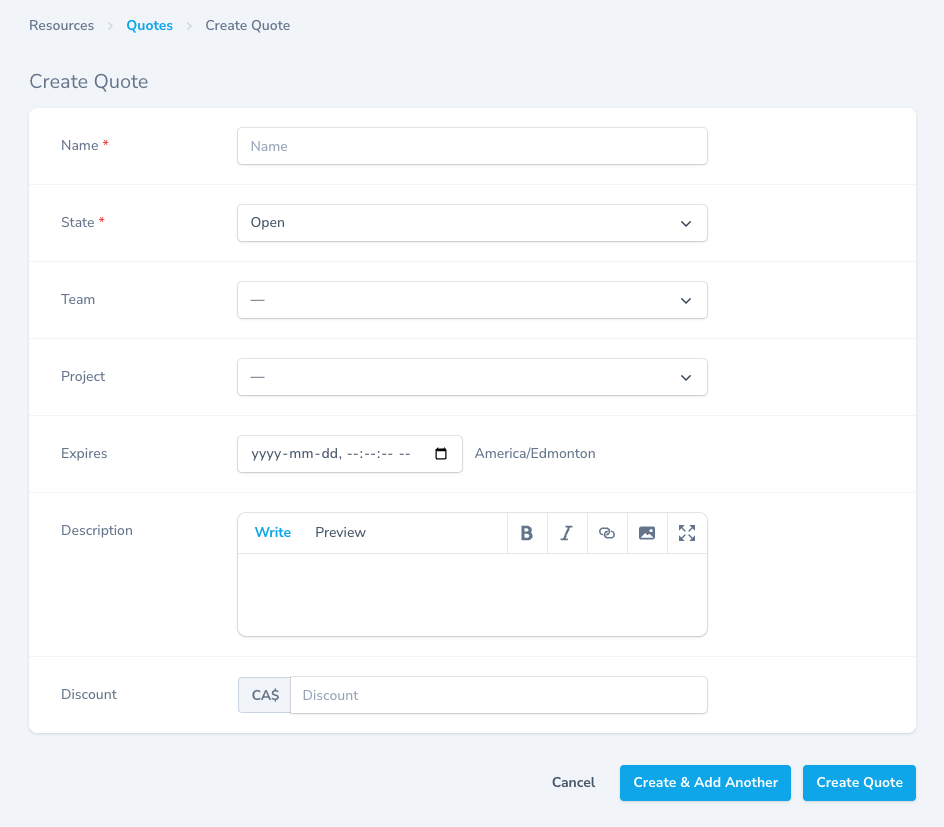
Required Fields:
Name (Required)
- Descriptive quote name
- Example: "CNC Machining Services - Project X"
State (Required)
- Open - Quote in progress
- Accepted - Customer approved
- Rejected - Customer declined
Optional Fields
Team - Associate with team Project - Link to project Expires - Quote expiration date/time Description - Detailed quote information with rich text Discount - Discount amount (CA$ field)
Quote States
OPEN → User can edit and modify
ACCEPTED → Quote approved, locked
REJECTED → Quote declined, locked
⚠️ Important: Once accepted or rejected, quotes cannot be modified.
Save Options
- Create Quote - Save and return
- Create & Add Another - Save and create another
- Cancel - Discard
Invoices
Invoices collect charges for a project and period for billing.
Invoice Generation
- Select project and date range
- System finds all pending charges
- Applies invoice rules
- Creates invoice
- Charges marked as BILLED
Effect:
- All charges change to BILLED state
- Charges can no longer be modified
- Invoice locked for payment
Charges
Charges are generated from usage records and represent billable amounts.
Viewing Charges
Navigate to Resources → Charges.
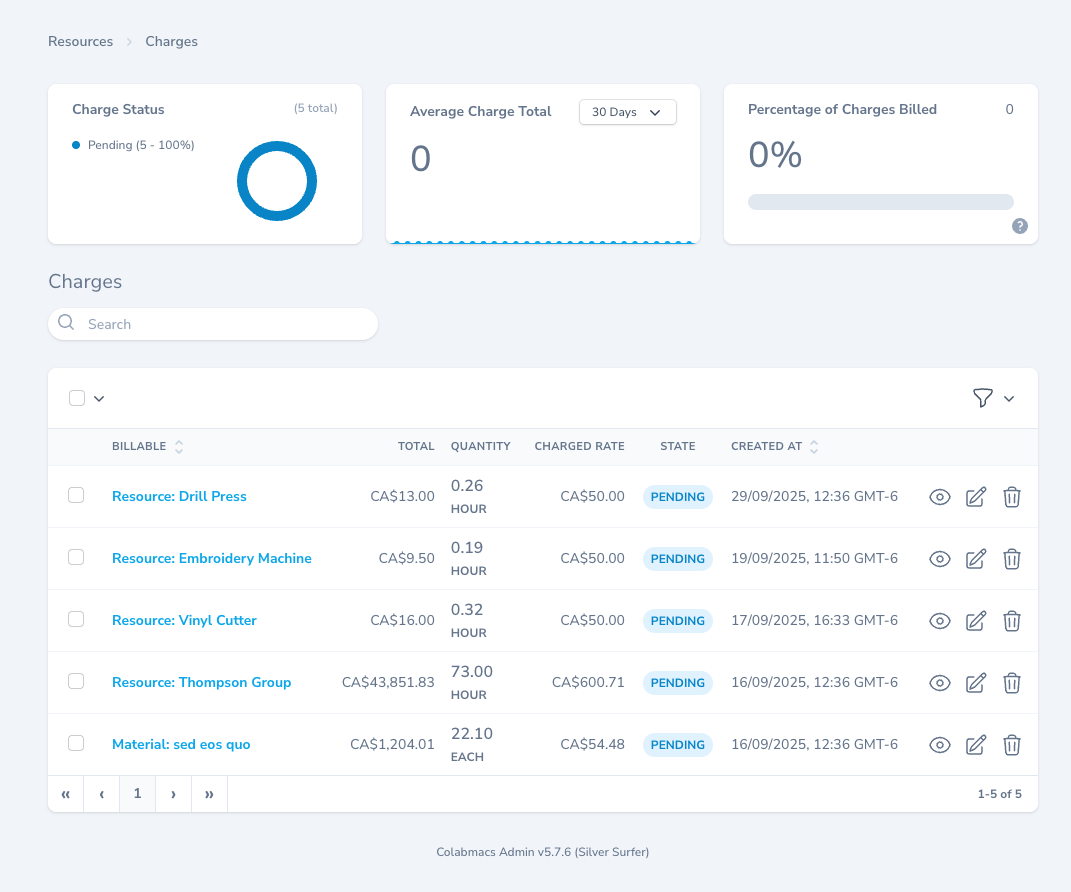
Dashboard Widgets:
Charge Status (5 total)
- Pending (5 - 100%)
- Donut chart visualization
Average Charge Total (30 Days)
- Shows average charge amount
- Trend chart (currently 0)
Percentage of Charges Billed
- Shows billing completion rate (0%)
- Progress bar
Table Columns:
| Column | Description | Example |
|---|---|---|
| BILLABLE | Resource or material | Resource: Drill Press |
| TOTAL | Charge amount | CA$13.00 |
| QUANTITY | Amount used | 0.26 HOUR |
| CHARGED RATE | Rate applied | CA$50.00 |
| STATE | PENDING or BILLED | PENDING |
| CREATED AT | Charge creation date | 29/09/2025, 12:36 GMT-6 |
Actions: 👁 View | ✏ Edit | 🗑 Delete
How Charges are Generated
From Usage Records:
- User uses resource or material
- Usage record created
- System finds applicable rate
- Charge automatically generated
Requirements:
- ✓ Resource/Material must have Rate
- ✓ Rate must be in Rate Group
- ✓ Rate Group assigned to Project
- ✓ Usage record exists
Charge Calculation:
Charge Amount = Quantity × Rate

Example:
Quantity: 0.26 Hours
Rate: CA$50.00/Hour
Charge: CA$13.00
Charge States
PENDING:
- Not yet invoiced
- Can be modified or deleted
- Available for billing
BILLED:
- Attached to invoice
- Cannot be modified
- Locked for audit trail
Unit Conversion
Charges use rate units, automatically converting usage units:
Usage: 15 Minutes
Rate: CA$50.00 per Hour
Converted: 0.25 Hours
Charge: CA$12.50
Supported Conversions:
- Minutes ↔ Hours ↔ Days
- Compatible time units only
⚠️ Invalid Conversions: Setting incompatible units (e.g., "Each" for time-based usage) prevents charge generation.
Rates
Rates define pricing for resources and materials. They must belong to a Rate Group.
Viewing Rates
Navigate to Resources → Rates.
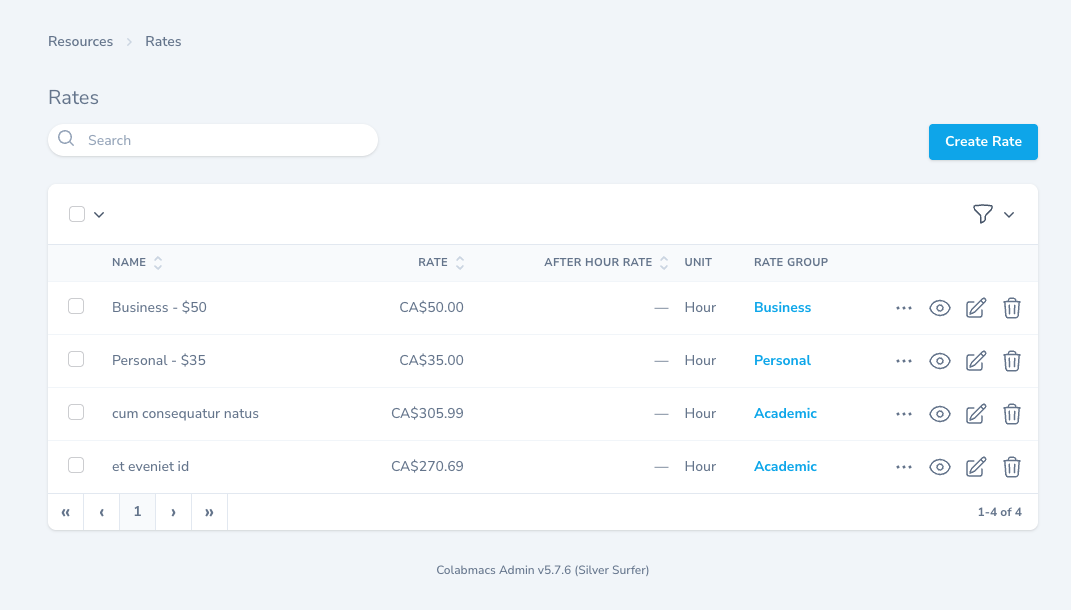
Table Columns:
| Column | Description | Example |
|---|---|---|
| NAME | Rate name | Business - $50 |
| RATE | Standard rate | CA$50.00 |
| AFTER HOUR RATE | After-hours rate | — (none) |
| UNIT | Billing unit | Hour |
| RATE GROUP | Associated group | Business |
Actions: ... | 👁 View | ✏ Edit | 🗑 Delete
Creating Rates
Click Create Rate.
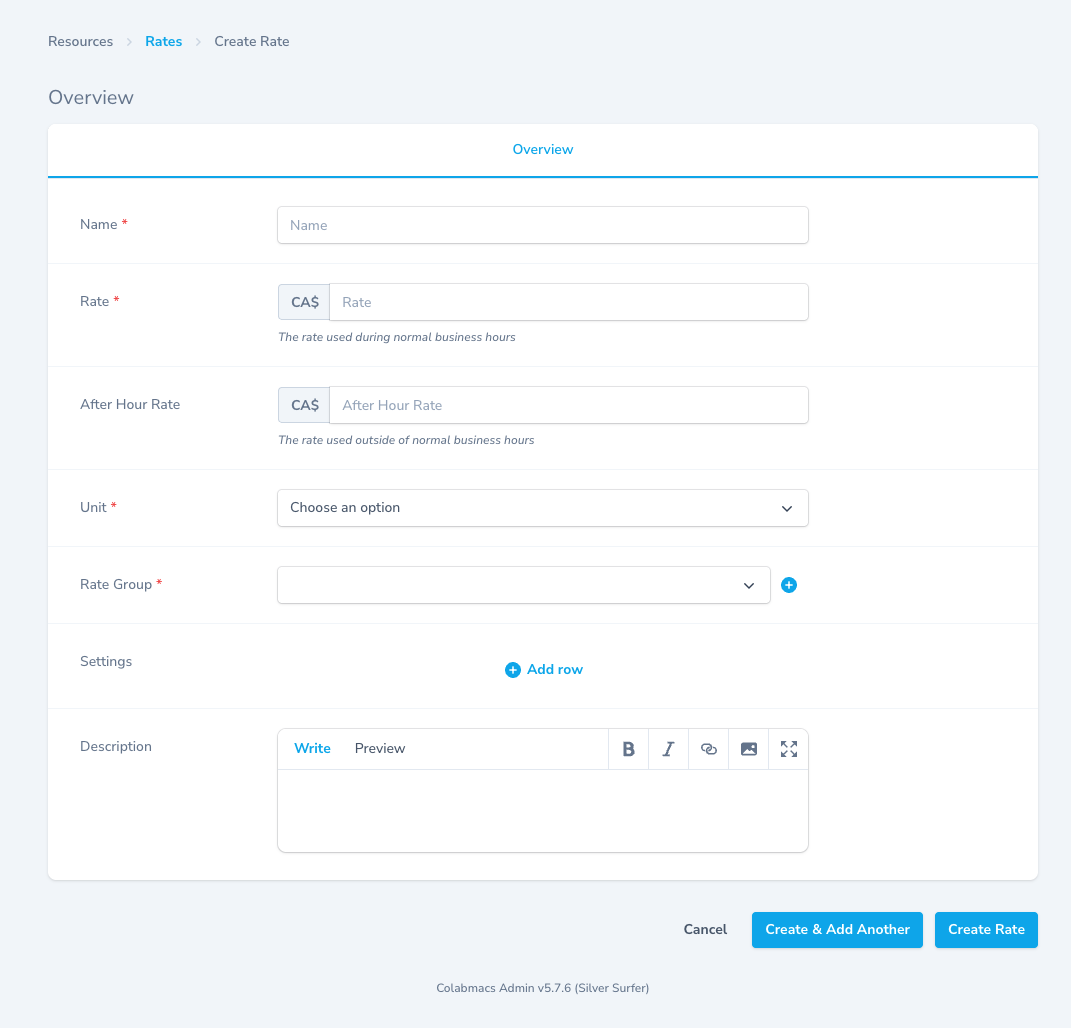
Required Fields:
Name (Required)
- Descriptive rate name
- Example: "Business - $50", "Academic - $25"
Rate (Required)
- Standard rate amount (CA$)
- Used during business hours
- Helper: "The rate used during normal business hours"
Unit (Required)
- Billing unit dropdown
- Options: Hour, Minute, Day, Each, etc.
- Must match usage tracking units
Rate Group (Required)
- Select rate group
- Dropdown selection
- Determines when rate applies
Optional Fields
After Hour Rate
- Different rate outside business hours
- CA$ amount
- Helper: "The rate used outside of normal business hours"
Settings - Click Add row for custom settings
Description - Rich text rate details
After Hours Rates
Rates can have different pricing outside business hours.
How It Works:
- System checks resource business hours
- Calculates time during vs after hours
- Applies weighted average rate
Formula:
Effective Rate = (Day Time / Total Time × Rate) +
                 (After Hours Time / Total Time × After Hour Rate)
Example:
Rate: $100/hour
After Hour Rate: $150/hour
Business Hours: 8:00-17:00

Usage: 16:00-18:00 (2 hours)
- 1 hour during business hours
- 1 hour after hours

Calculation:
Effective Rate = (1/2 × $100) + (1/2 × $150) = $125/hour
Charge = 2 hours × $125 = $250
More Examples:
| Scenario | Hours | Day Time | After Hours | Effective Rate |
|---|---|---|---|---|
| All business hours | 15:00-16:00 | 1 hr | 0 hr | $100.00 |
| All after hours | 17:00-18:00 | 0 hr | 1 hr | $150.00 |
| Split | 16:00-18:00 | 1 hr | 1 hr | $125.00 |
Note: Weekends are separate from "after hours" for rule application purposes.
Save Options
- Create Rate - Save and return
- Create & Add Another - Save and create another
- Cancel - Discard
Rate Groups
Rate Groups organize rates by customer type, allowing different pricing for different projects.
Viewing Rate Groups
Navigate to Resources → Rate Groups.
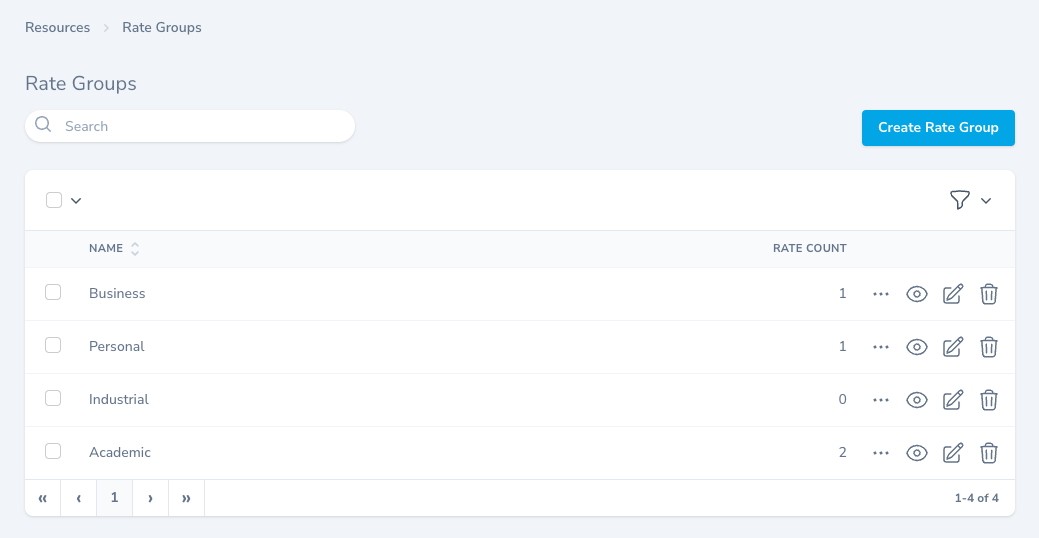
Table Columns:
| Column | Description |
|---|---|
| NAME | Group name (Business, Personal, Industrial, Academic) |
| RATE COUNT | Number of rates in group |
Actions: ... | 👁 View | ✏ Edit | 🗑 Delete
Creating Rate Groups
Click Create Rate Group.
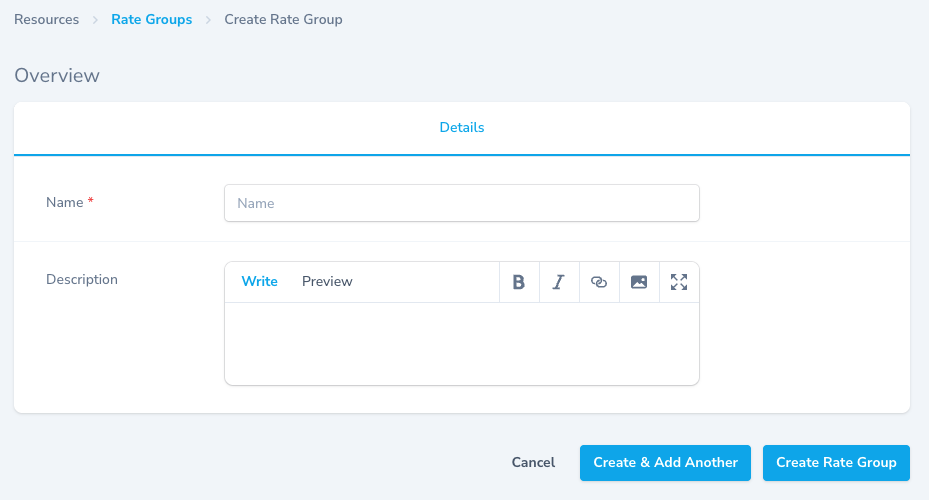
Required Fields:
Name (Required)
- Group name
- Examples: "Academic", "Industrial", "Business", "Personal"
Description
- Rich text details
- Explain group purpose
Rate Group Examples
Academic Rate Group:
Name: Academic
Rates:
- 3D Printer: $50/hour
- Laser Cutter: $25/hour
- CNC Mill: $75/hour

Used for: University research projects
Industrial Rate Group:
Name: Industrial
Rates:
- 3D Printer: $150/hour
- Laser Cutter: $100/hour
- CNC Mill: $200/hour

Used for: Commercial manufacturing
How Rate Groups Work
- Create Rate Groups (Academic, Industrial)
- Create Rates for each group
- Assign Rate Group to Project
- Usage generates charges using project's rate group
Example Flow:
Project: Research Study
├── Rate Group: Academic
├── Uses: 3D Printer
└── Rate Applied: $50/hour (Academic rate)

Project: Product Manufacturing
├── Rate Group: Industrial
├── Uses: 3D Printer (same printer)
└── Rate Applied: $150/hour (Industrial rate)
Billing Rules
Billing Rules automatically adjust charges and invoices based on conditions.
Charge Rules
Applied when charges are generated from usage records.
Available Rules:
| Rule | Description | Parameters |
|---|---|---|
| Cap Quantity | Limit maximum charged quantity | cap (interval) |
| Cap Quantity Per Interval | Cap per time period | cap, interval |
| Min Quantity | Set minimum charge quantity | minimum (interval) |
| Round Up To Booking Time | Charge booked time if more | None |
| Scale Quantity | Multiply quantity by factor | factor, cap (optional) |
| Grace Period | No charge if under threshold | grace (interval) |
Rule Application:
- Can apply to specific business hours, after hours, or weekends
- Based on resource business hours
- Weekends separate from after hours
Examples:
Cap Quantity:
cap = 8 hours
Usage: 10 hours
Charged: 8 hours
Cap Per Interval:
cap = 8 hours
interval = 1 day
Usage: 76 hours over 4 days
Charged: 28 hours (3×8 + 4)
Min Quantity:
minimum = 1 hour
Usage: 15 minutes
Charged: 1 hour
Grace Period:
grace = 15 minutes
Usage: 10 minutes → No charge
Usage: 20 minutes → Charged 20 minutes
Scale Quantity:
factor = 0.5
cap = 10 hours
Usage: 12 hours
Scaled: 6 hours (under cap, so 6 hours charged)
Invoice Rules
Applied when invoices are generated from charges.
| Rule | Description | Parameters |
|---|---|---|
| Cap Total | Limit maximum invoice total | maximum |
| Scale Total | Multiply total by factor | factor, maximum (optional) |
Examples:
Cap Total:
maximum = $1000
Charges Total: $1250
Invoice Total: $1000
Scale Total:
factor = 0.9 (10% discount)
maximum = $500
Charges Total: $600
Scaled: $540
Invoice Total: $500 (capped)
⚠️ Note: Invoice rules modify the total, not individual charges. Invoice total may not equal sum of charges.
Rule Filters
All billing rules support filters:
Include/Exclude:
includeTeams/excludeTeamsincludeProjects/excludeProjectsincludeProjectTypes/excludeProjectTypes
Example:
Rule: 50% discount
includeProjectTypes: ["Academic", "Research"]
Result: Only academic/research projects get discount
Best Practice: Don't use both include and exclude in the same rule.